【2026 File Management】Vibe Coding Off the Rails? One Action to Roll Back to a Working Version
AI agent races ahead, code won't run, you've lost track of which files it edited? Open Keeply's Timeline, find the last working entry, right-click Restore — the entire project folder returns to the pre-overshoot state in 30 seconds.
【2026 File Management】Vibe Coding Off the Rails? One Action to Roll Back to a Working Version
AI agent races ahead, code won’t run. Open the Keeply Timeline. The last working version is still right there.
Contents
- What does the moment of AI overshoot look like?
- One action: open the Timeline, click the last working point
- Why AI won’t roll itself back
Engineer A opens Cursor and tells the AI to fix a bug. The AI finishes. Code won’t run. He tells the AI to fix it again. The AI touches a third file. Still broken. It edits a fifth. By now Engineer A is no longer sure which files the AI has changed.
At this point you’re probably thinking: stop, get back to the state that at least ran a moment ago.
The problem is this: how do you know which version was the one that ran?
I’ve hit this myself. By the time the AI had touched the 5th file, I couldn’t tell which version still ran. Luckily, Keeply’s timeline still had the last one I’d run manually.
What does the moment of AI overshoot look like?
You’re vibe coding. You hand the AI a goal. The AI writes a chunk.
Run it. OK.
Next round, you say “add another feature.” The AI touches 3 files. Run. Error.
You say “fix that error.” The AI touches 5 files, edits the config, adds a helper function you never asked for. Run. More errors.
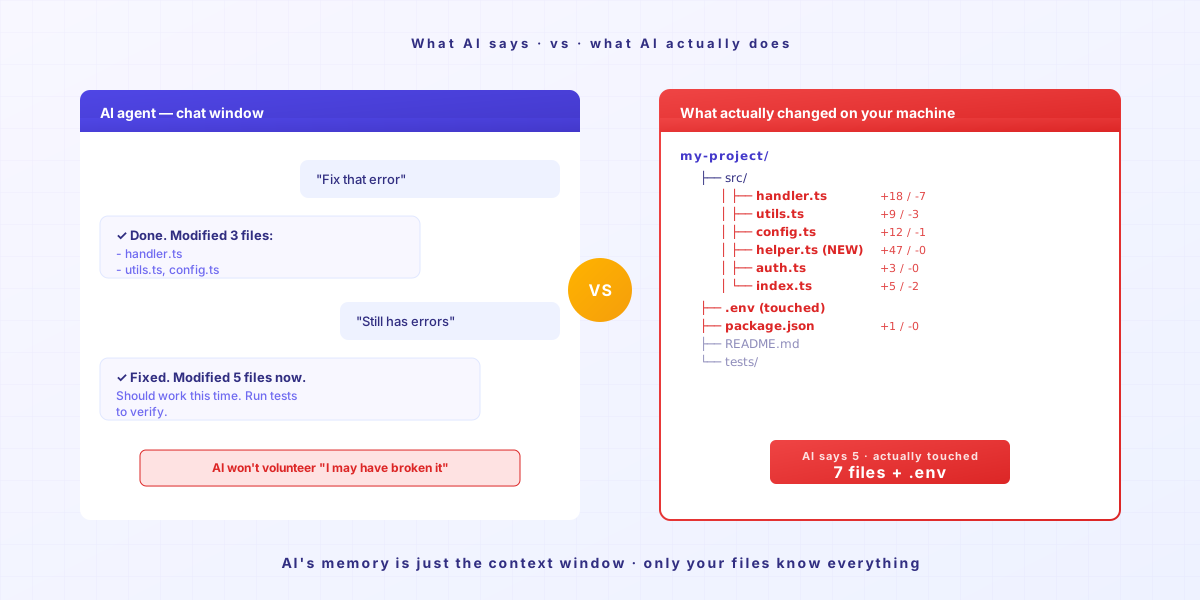
The AI is still confidently fixing things. It will not volunteer “I might have wrecked this.”
Its memory is only the current context window. It does not know that 5 prompts ago your code was fine. But the files on your computer know. As long as someone remembers.
One action: open the Timeline, click the last working point
Step 1: Open the Keeply Timeline
First tab in the left sidebar. You’ll see every change today, ordered by time.
Step 2: Find the last point where the code “still ran”
Each entry on the Timeline is either a Keeply auto-save point or a moment you marked manually. Open each point to see the changes inside, and find the version you remember as “tested OK back then.”
Usually 30-60 minutes ago. The last test before the AI started going sideways.
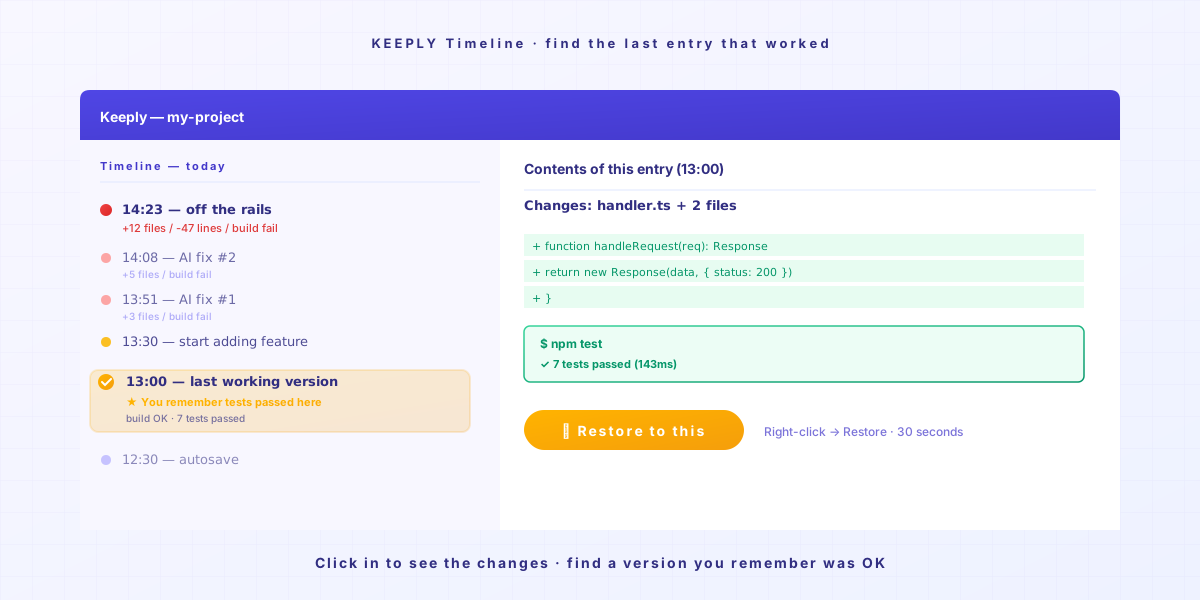
Step 3: Right-click that entry, choose Restore
Keeply opens a restore dialog showing the impact and a clear warning, so you can read it before clicking:
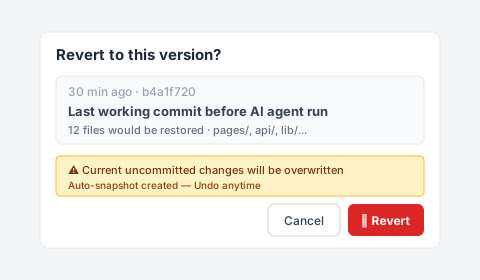
The whole folder returns to that point in time within 30 seconds. All files, the full directory tree, every config. They all go back together. Not just one file.
That includes the helper function the AI snuck in, the config it edited, the .env it shouldn’t have touched. All of it goes back.
Then you run it. It works.
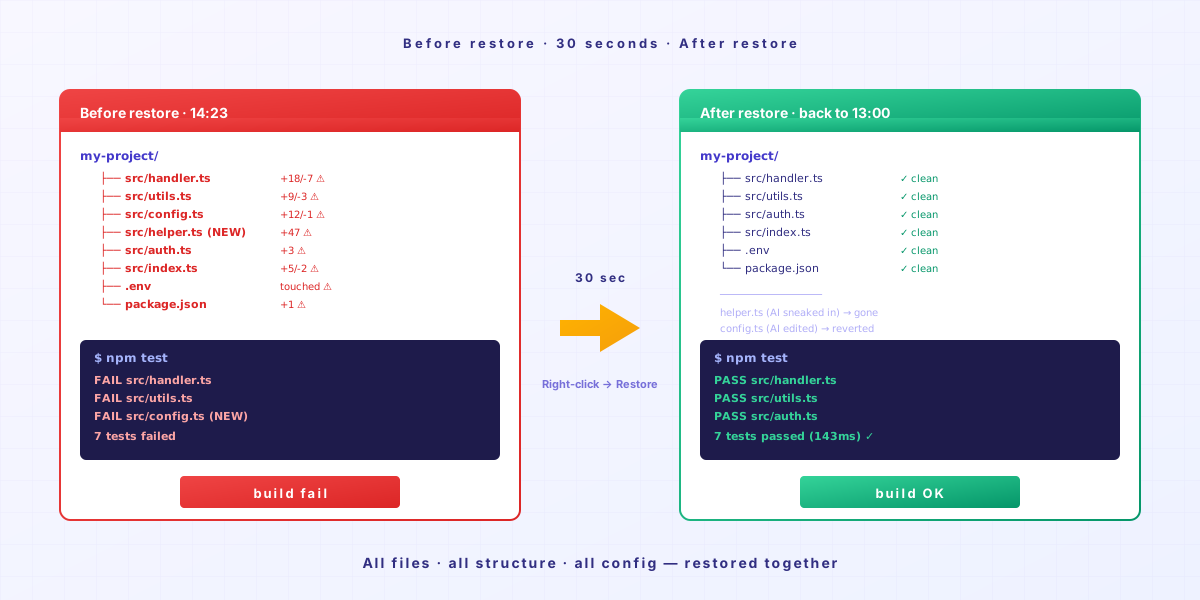
The whole process takes under a minute. You don’t have to remember which files the AI touched. Keeply remembered all of them.
Why AI won’t roll itself back
AI agents are designed to drive forward. They receive a prompt, produce an edit. They will not pause to look back and ask “did that last round just make the project worse.”
That responsibility doesn’t sit with the AI. It’s an architectural limit.
The responsibility sits with you: you need a safety net running in the background. Let the AI race as far as it wants, because you can pull it back.
Keeply isn’t here to replace the part where you write code. It’s here so that when you’re vibe coding, you don’t have to lean on memory to backtrack. Memory loses to the speed of AI editing files.
Closing
Before today’s AI session goes off the rails, open Keeply and drop your project folder in.
Next time it overshoots, you open the Timeline and click the last entry. Problem closed in 30 seconds.
Further reading
- How to use Keeply, the file-notes app: skip the 30-feature tour, get going in 2 actions (PILLAR 3, the full Keeply onboarding guide)
About the author: Ting-Wei Tsao, founder of Keeply. LinkedIn