【2026 File Management】Document version control: stop the `_v3_FINAL` arms race
Why your `_v3_FINAL.docx` habit isn't OCD — it's a survival reflex against an OS that doesn't give you undo after Cmd+S. This piece unpacks 'too many versions' into 4 separate pains, then shows the 3 tool designs (with Keeply as one) that take the naming burden off your shoulders.
Thursday night, 11:47 PM. You’re on your desktop looking for the version your client signed off on this afternoon. Eleven files named Proposal_v*_FINAL.docx sit there — which one is the signed copy, which one has your annotations, which one is the IM-revised draft. You’re afraid to delete any. Keeping them all means you can’t find the one you need.
This isn’t a one-off. It happens to everyone working with Cmd+S (or Ctrl+S). Let’s start by showing you what document version control looks like when the tool actually carries the naming weight — then unpack why you’re not — then look at the 3 design patterns that solve it.
Contents
- What document version control looks like with Keeply (no naming arms race)
- Why you end up naming files
_v3_FINAL - “Too many versions” is actually 4 different pains
- You’re doing the right thing — the tool just didn’t pick up the baton
- 3 tool designs that solve this (Keeply does all 3)
- 3 scenarios where Keeply isn’t the right tool
What document version control looks like with Keeply (no naming arms race)
Before we dissect the four-pain knot, let me show you what the same proposal.docx looks like inside a document version control system that does the bookkeeping for you. Same draft-to-client-signoff arc, same Cmd+S habit — in Keeply, this project’s timeline looks like this:
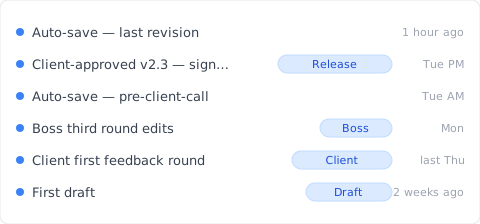
“Client-approved v2.3 — signed contract version” gets its own row with a “Release” tag. That’s me Tuesday afternoon, after the client signed off, hitting “Save version” in Keeply’s main window and writing a one-line note. No _v3_FINAL.docx renaming, no folder-cleanup ritual at midnight.
Two actions, total:
- Save—Ctrl+S in Word as usual. Keeply polls in background within 30 min, sees the change, auto-saves a version to the timeline. You don’t rename anything.
- Mark milestone—at significant moments (client signoff / ship / release), hit “Save version” in Keeply’s main window. Dialog pops up, you write a one-line note:
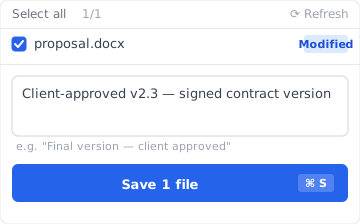
Write “Client-approved v2.3 — signed contract version,” save. Three months later when the client calls, the tag in the timeline gets you there in 3 seconds.
No _FINAL, no _FINAL_v2, no _REAL_FINAL. The filename stays proposal.docx. The history is on Keeply’s side, indexed and searchable.
Below: why you’ve been doing the naming arms race in the first place, and which of the 4 pains you’re actually solving (without realizing it).
Why you end up naming files _v3_FINAL
Cmd+S is a permanent action. The moment you press it, the previous version is overwritten. There’s no “the version from thirty minutes ago” button waiting for you. PSDs for designers, contract .docx files for lawyers, dissertations for grad students, same story everywhere. If you don’t name it, you lose it. So you append _v3, _FINAL, _REAL_FINAL to the filename.
Yeah, that’s the frustrating part. What you’re doing isn’t compulsive. It’s a survival reflex against an OS that never gave you an undo button.
“Too many versions” is actually 4 different pains
Pull “too many versions” apart and you find four completely different problems. Each one needs a different solution.
| # | Pain type | Typical scene |
|---|---|---|
| 1 | User overwrite | Press Cmd+S, then realize “wait, the version from thirty minutes ago was the right one” |
| 2 | Client feedback loop | Contract_v3_client_notes.docx / Proposal_v5_boss_wants_changes.docx ping-ponging back and forth |
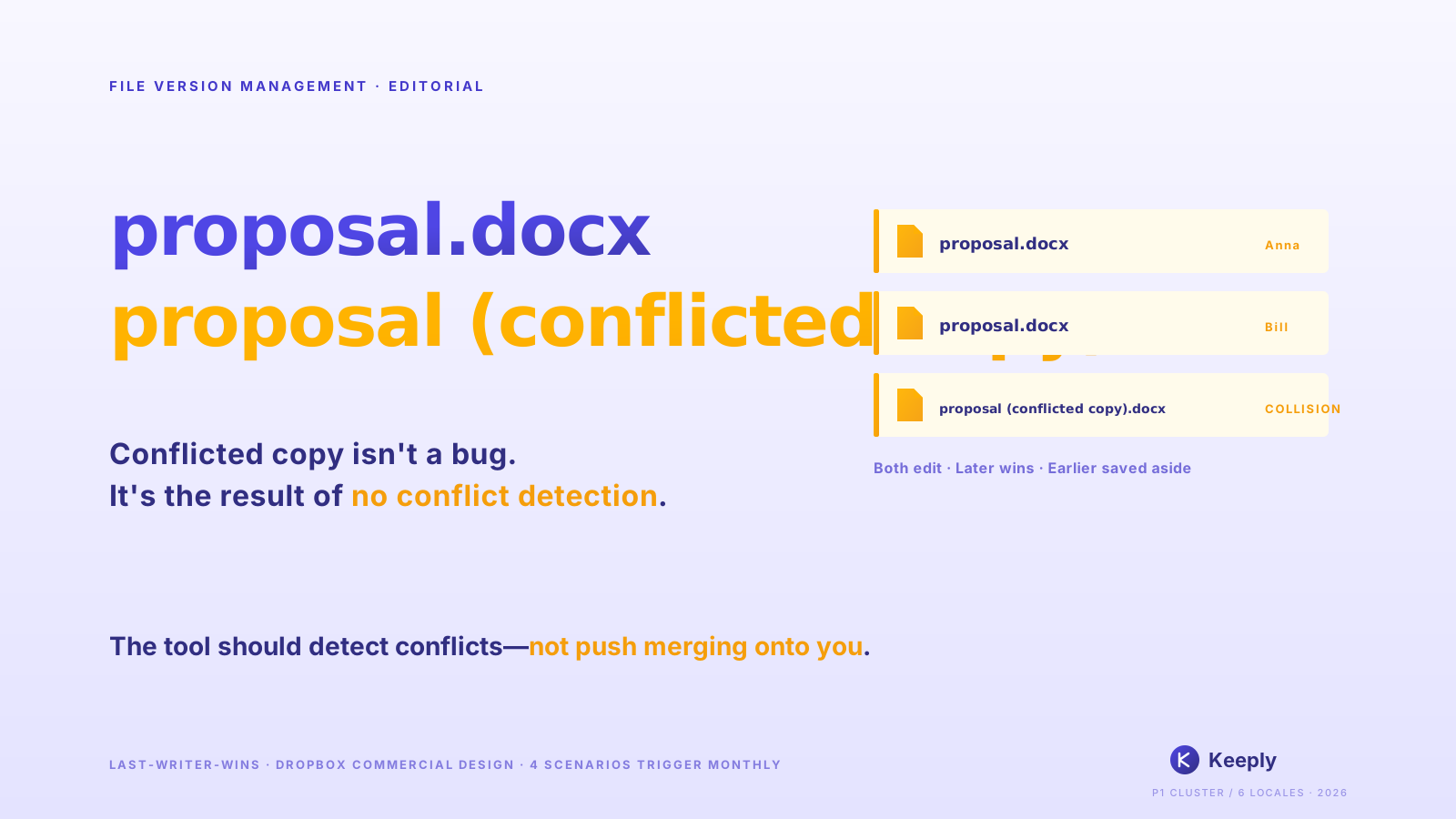
| 3 | Cloud sync conflict | Dropbox / OneDrive: both ends edit, you get Proposal (Bill's conflicted copy).docx |
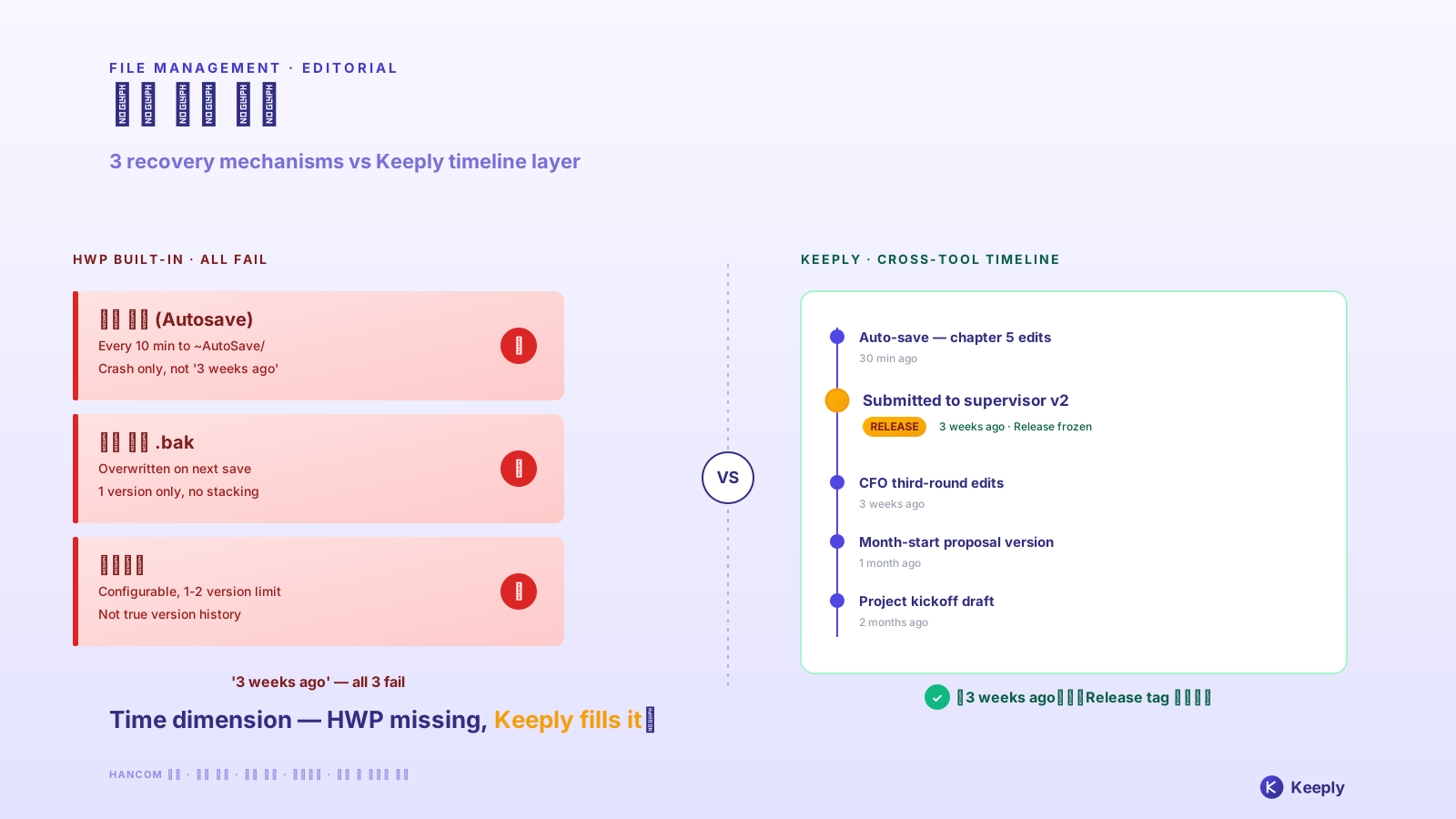
| 4 | Software auto-save residue | Word .asd / Premiere .bak / PSD .psb autosave files scattered everywhere |
You think you’re solving one thing, but it’s actually four. Type 1 needs automatic version preservation. Type 2 needs milestone freezing. Type 3 needs sync conflict resolution. Type 4 needs tool training. Diagnose which one you have before chasing a fix.
You’re doing the right thing — the tool just didn’t pick up the baton
Appending _v3_FINAL to a filename is logically correct — you need to mark the meaning of each version. The mistake isn’t yours; it’s that the tool layer never provided “automatic checkpoints” or “automatic milestones,” so it dumps the responsibility back onto the filename. You use the only tool you have — the filename — because that’s all that’s available.
Productivity blogs will tell you to “have a naming convention,” circulate a 14-page naming standards PDF, get the team to memorize prefix orders. It sounds reasonable. In practice, it lasts three days.
The problem: rules push version-management responsibility onto human discipline. And discipline never wins against automation. Today you remember 2026-05-04_Proposal_v3_signed.docx. Tomorrow you’re rushed and it becomes Proposal_v3_FINAL.docx. The day after, the client sends another round and it’s Proposal_v3_FINAL_v2.docx.
You’re doing the right thing. Naming _v3_FINAL is a reasonable survival reflex. It’s just that this survival reflex shouldn’t have been necessary.
3 tool designs that solve this (Keeply does all 3)
Three design patterns the tool can use. Each one solves one of the four pain types above.
Design A: Automatic checkpoints (the versions you save are kept)
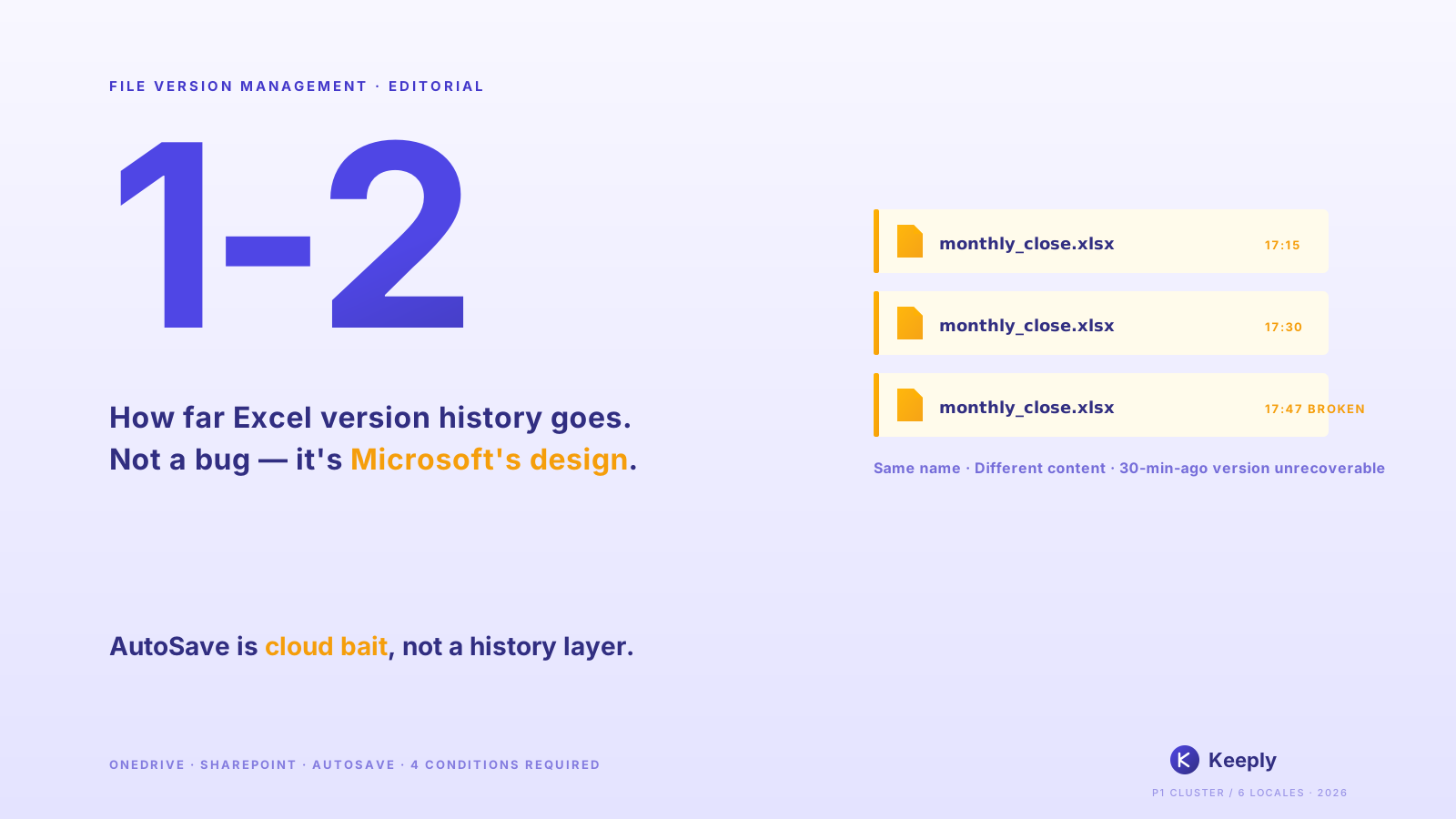
You press Cmd+S, the tool quietly preserves the previous version. You don’t have to name anything. Examples: macOS Time Machine (Apple’s built-in tool that snapshots every hour), Word AutoSave (only goes back 1-2 versions), Dropbox 30-day version history. Keeply runs this in the background on your working folder: text files only store what changed, design and image files each keep a full snapshot — so large files don’t blow out your disk. Solves Type 1.
How do you find one of those quiet checkpoints later? Hover over any row in the timeline and Keeply pops up a card showing exactly which files changed in that save — no need to open anything to compare:
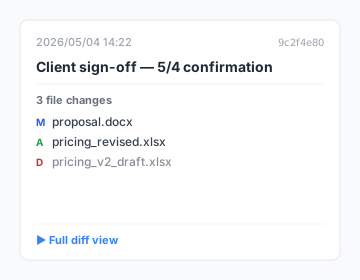
Click in for the full diff, or right-click to restore. No more naming files _v3_FINAL_v2_final.docx to mark which version was which.
Design B: Named milestones (you mark “client signed” or “shipped”)
You actively flag “this version got signed” or “this version went live” — from then on, no matter how the file changes, the milestone stays put. Example: GitHub Releases (a feature engineers use to freeze a code snapshot as a named milestone — developer-only territory). Keeply has a “Release” feature that does the same job without you having to learn any developer terminology: pick a version from history, click “Save version” with a note like “Client-approved v2.3,” and that version stays recoverable forever (this is the dialog you saw above). Solves Type 2.
Design C: Single-file restore (pull one file out of history)
Restore a single file from any historical version, without rolling back the whole folder. Examples: Dropbox single-file restore, Time Machine single-file restore. Keeply adds version-content search — if you remember “I changed something last week,” you can search inside past changes, locate the version, and pull just that one file back. Solves Type 1+2 combined scenarios.
Of the four pain types, only Type 4 (software auto-save residue) takes a different path: it’s a tool-training problem (learn to clear caches), not a version-management one. Type 3 (cloud sync conflict) is its own animal — see Dropbox conflicted copy for the conflict-resolution piece.
3 scenarios where Keeply isn’t the right tool
Keeply doesn’t solve every scenario:
- Raw video footage: Tens of GB of Premiere footage piling up daily. Disk simply isn’t enough. Keeply isn’t a cold-storage solution — use LTO tape or Backblaze B2 archive.
- Folders with 1M+ files: Keeply onboarding is designed for hundreds to thousands of files. Engineering source-control repos with millions of objects belong on git / Perforce.
- Pure legal signing workflows: For signature collection + audit chain + compliance retention, use DocuSign / Adobe Sign / industry-specific archive software. Keeply tracks version history, it doesn’t certify signatures.
Before you press Cmd+S next time
Next time you press Cmd+S, you won’t worry “what if this is the wrong version” — because the “what if” doesn’t exist anymore. Every version is still there. The filename stays clean. The history is on Keeply’s side.
Want the bigger picture? The complete guide to file version management unpacks why your existing tools were never designed for keeping file history.
About the author: Ting-Wei Tsao, founder of Keeply. LinkedIn