【2026 File Management】SharePoint version history: 500-version cap + auto-delete hidden cost
Microsoft 2024 gave IT admins an auto-delete button (500 / 100 / 50 / cutoff) to shrink SharePoint storage quota. But what do you lose when you press it? Here's the 500-version cap, the 4 auto-delete tiers, the real storage savings — and how Keeply Release-freeze catches what gets auto-deleted.
【2026 File Management】SharePoint version history: 500-version cap + auto-delete hidden cost
Microsoft 2024 gave IT admins a storage-saving button. Know what you lose before you press it.
“You just set SharePoint auto-delete to 100 yesterday. Today the client asks for the version from three months ago. Open the history — only 100 versions left. The other 250 are gone. Microsoft already deleted them for you.”
This isn’t a bug. It’s the mechanism Microsoft Learn has stated clearly: 500-major-version cap + the auto-delete settings (500 / 100 / 50 / cutoff in 4 tiers) launched in late 2024. This article unpacks the 3 SharePoint version history mechanisms + what you lose after enabling auto-delete, then how Keeply catches the post-cap scenarios.
Contents
- How Keeply keeps SharePoint history from getting eaten by auto-delete
- SharePoint version history 3 mechanisms: 500 major + 511 minor + auto-delete
- 500-major cap: Microsoft’s official number, easy-to-miss details
- Auto-delete 4 tiers: 500 / 100 / 50 / cutoff real cost
- SharePoint storage quota: how much does 100 actually save?
- Keeply fills the gap: Release-freeze + per-file note across SP storage tiers
- 3 scenarios where you don’t need Keeply with SharePoint
- FAQ
How Keeply keeps SharePoint history from getting eaten by auto-delete
Here’s what happens. James is the part-time IT admin at a small business. A 5-person team uses SharePoint Online to collaborate on proposal.docx. Over six months they’ve accumulated 200+ versions, SharePoint storage quota is at 80%, and he just set auto-delete to 100 in admin center — next month the quota will drop back to a safe range.
But today the client suddenly asks for the version “from Feb 14 — the one the board signed off on.” James opens the SP version history. Only the last 100 versions are there. The Feb 14 version is already gone, auto-deleted.
With Keeply it wouldn’t happen. Same proposal.docx looks like this in Keeply’s timeline:
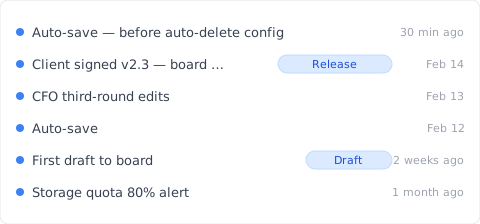
“Client signed v2.3 — board approved” gets its own row with a Release tag — that’s James on Feb 14, after the board signed off, hitting “Save version” in Keeply’s main window and writing a note:
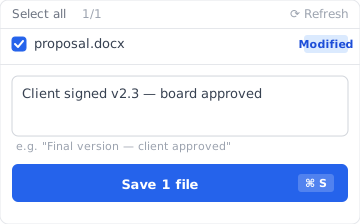
Write “Client signed v2.3 — board approved,” save the version. Six months later, scrolling Keeply’s timeline, the tag is right there — unaffected by SP auto-delete, never auto-deleted.
Two actions, total:
- Save — Ctrl+S in Word as usual. SharePoint syncs to the cloud (normal). Keeply polls in background within 30 min, sees the change, auto-saves a version to its own timeline.
- Mark milestone — at significant moments (board signoff / client signoff / ship), hit “Save version” in Keeply’s main window and write a note.
Below: unpack SharePoint’s 3 mechanisms — why 250 versions vanish when you set auto-delete to 100.
SharePoint version history 3 mechanisms
SharePoint says “version history” but it’s actually three different things blended together:
| Mechanism | What it is | Limit | Trigger |
|---|---|---|---|
| Major version | Full version per save | 500 (MS Learn) | Auto on every save (default) |
| Minor version | Draft state (requires major/minor versioning enabled) | 511 (additional pool) | Draft saves |
| Auto-delete setting | IT admin sets a stricter cap | 500 / 100 / 50 / time cutoff | Admin center setting |
Three different things — confused as one, you’ll look in the wrong layer. “Can’t find the version from 3 months ago” might be hitting the 500 cap, might be the auto-delete set to 100 / cutoff, might be the admin moved the file off-site entirely. First check what auto-delete your site is set to — then you know which layer to debug.
500-major cap: Microsoft’s official number
Microsoft Learn states it clearly: SharePoint Online document libraries keep up to 500 major versions per file. With major/minor versioning enabled, up to 511 minor versions on top.
Easy-to-miss details:
- Not “500 of any kind” — it’s 500 major + 511 minor (two independent pools)
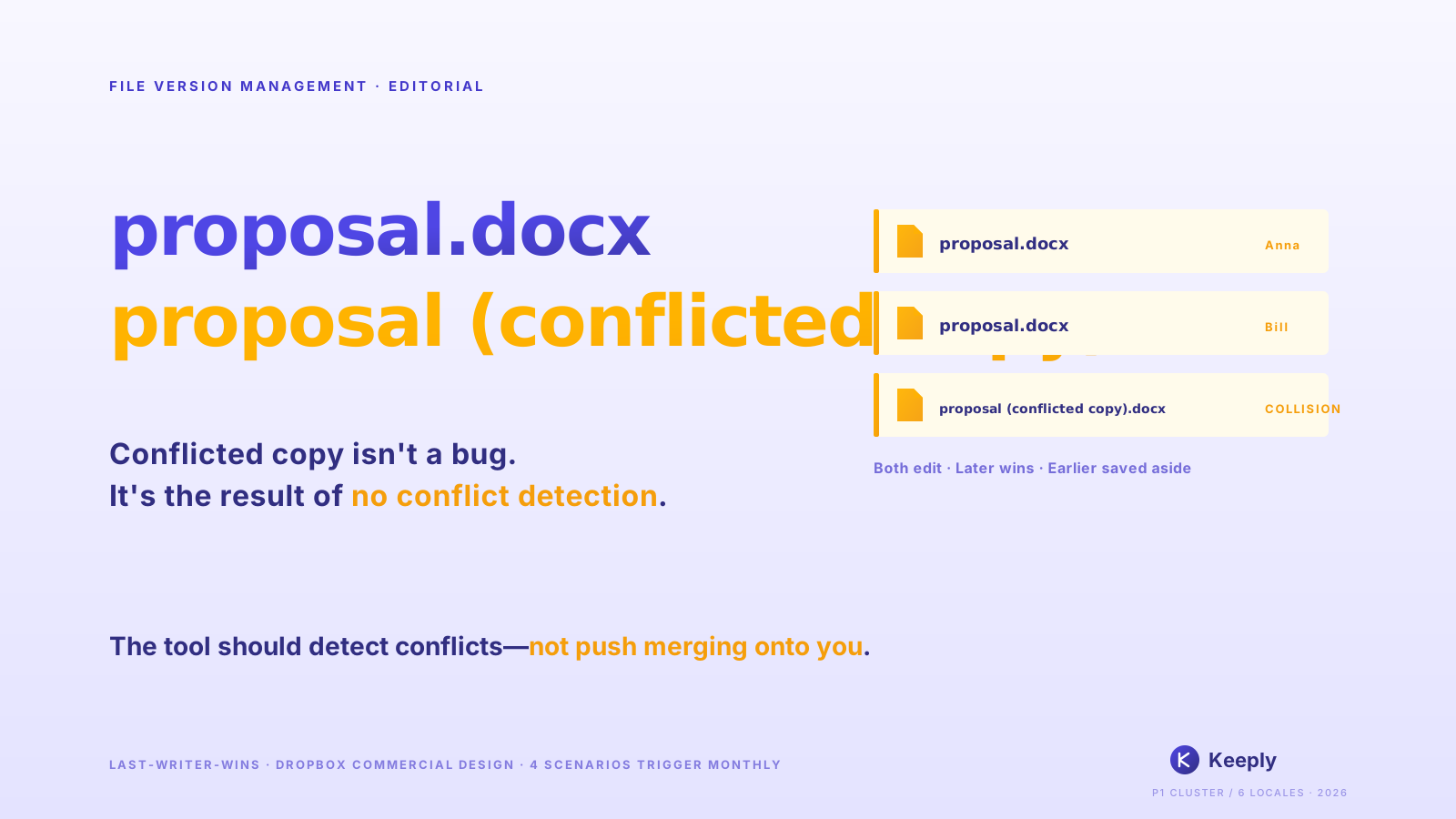
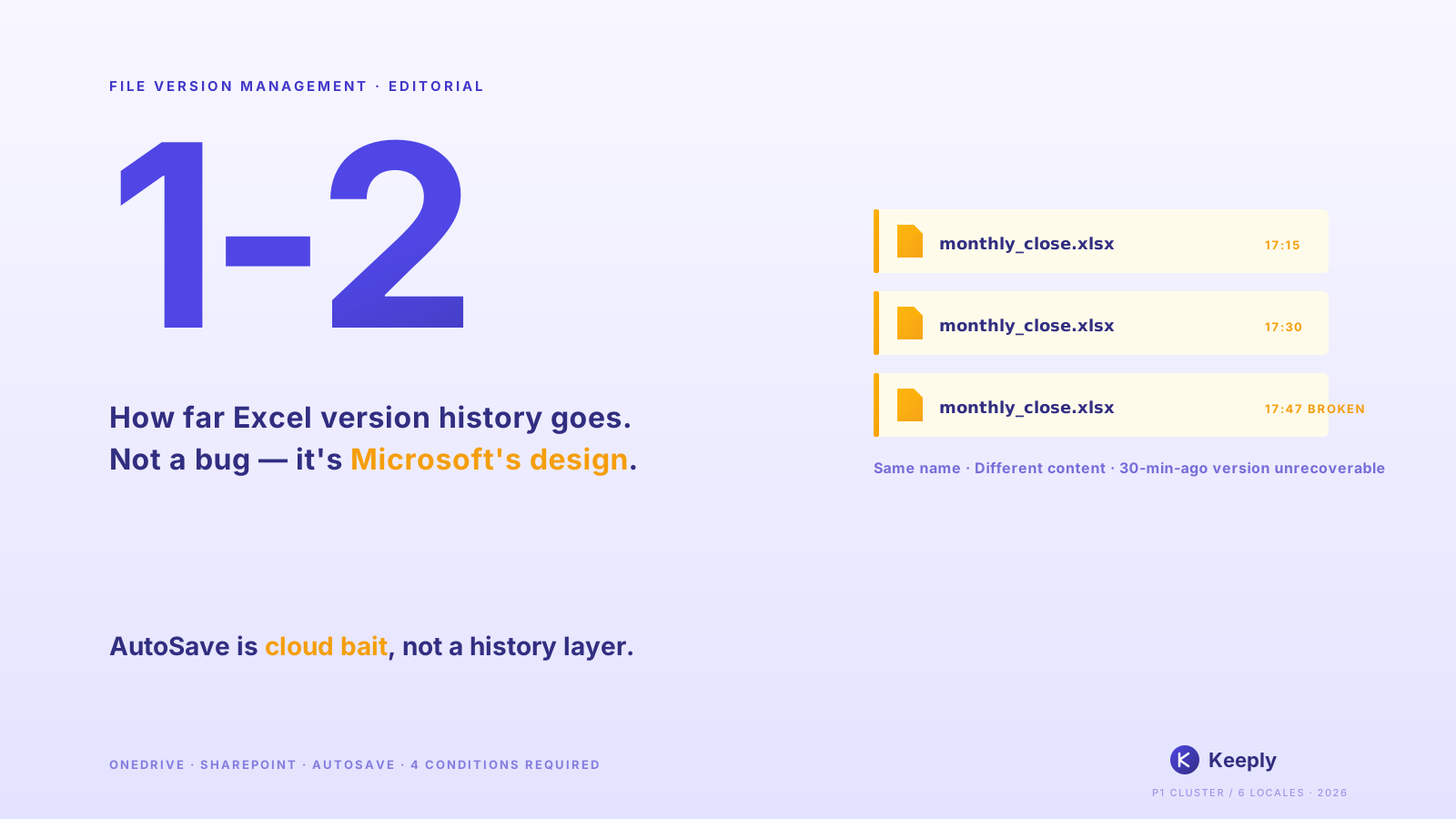
- Overage auto-deletes the oldest, no notification — same mechanism as OneDrive (see OneDrive version history breakdown)
- Per-file count — not “site collection shares 500”
- Pre-2024-Q4 every site was 500 by default, after that IT admins can set lower in admin center
Who hits the 500 cap:
- 5-person team rotating edits on a proposal, 3 saves/day = ~66 versions/month → cap in about 7-8 months
- IT admin doing cleanup pressing the cap down to 100 = cap hit 5× faster
Auto-delete 4 tiers: 500 / 100 / 50 / cutoff real cost
Microsoft launched the version history auto-delete settings in late 2024. IT admins pick from:
| Tier | Versions kept | Best for | What you lose |
|---|---|---|---|
| 500 (default) | Last 500 | Ample storage, full history | After 501st save, lose oldest 1 |
| 100 | Last 100 | Storage tight, low-edit team | After 101st save, oldest auto-deleted |
| 50 | Last 50 | Storage stressed, light version needs | Large history loss (brutal for high-frequency saves) |
| Time cutoff (custom days) | Anything past N days deleted | Compliance retention scenarios | Pre-cutoff versions unrecoverable (Recycle Bin can’t help) |
Real storage savings: per a Japanese IT case study, after enabling auto-delete that tenant’s storage quota usage dropped from 85% to 35%. The cost: pre-cutoff versions permanently deleted.
The risk no one writes about: auto-delete is a site-collection level setting. After IT admin sets it, end users don’t see it and aren’t notified. Three months later when they can’t find a version, end users blame SP for being broken.
SharePoint storage quota: how much does 100 actually save?
SharePoint storage quota is tenant level + site collection level combined:
- Microsoft 365 Business Standard: 1 TB / tenant + 10 GB / user
- Microsoft 365 Business Premium: same
- Enterprise E3/E5: 5 TB / tenant + extra per-user storage
proposal.docx averages 1.5 MB × 500 major versions = 750 MB per file. 500 active documents × 750 MB = 375 GB → hitting the 1 TB tenant cap.
After auto-delete 100: 1.5 MB × 100 = 150 MB/file → 500 files × 150 MB = 75 GB → 7.5% tenant utilization. Yes, 5× storage savings.
But: you’ve lost 80% of the history. The version the board signed off on three months ago might be in the 400-version range that just got deleted.
Keeply fills the gap: Release-freeze across SP storage tiers
James’s situation: 5-person team + SP storage tight + wants cleanup but afraid of losing important versions.
Keeply gives him three things in one tool:
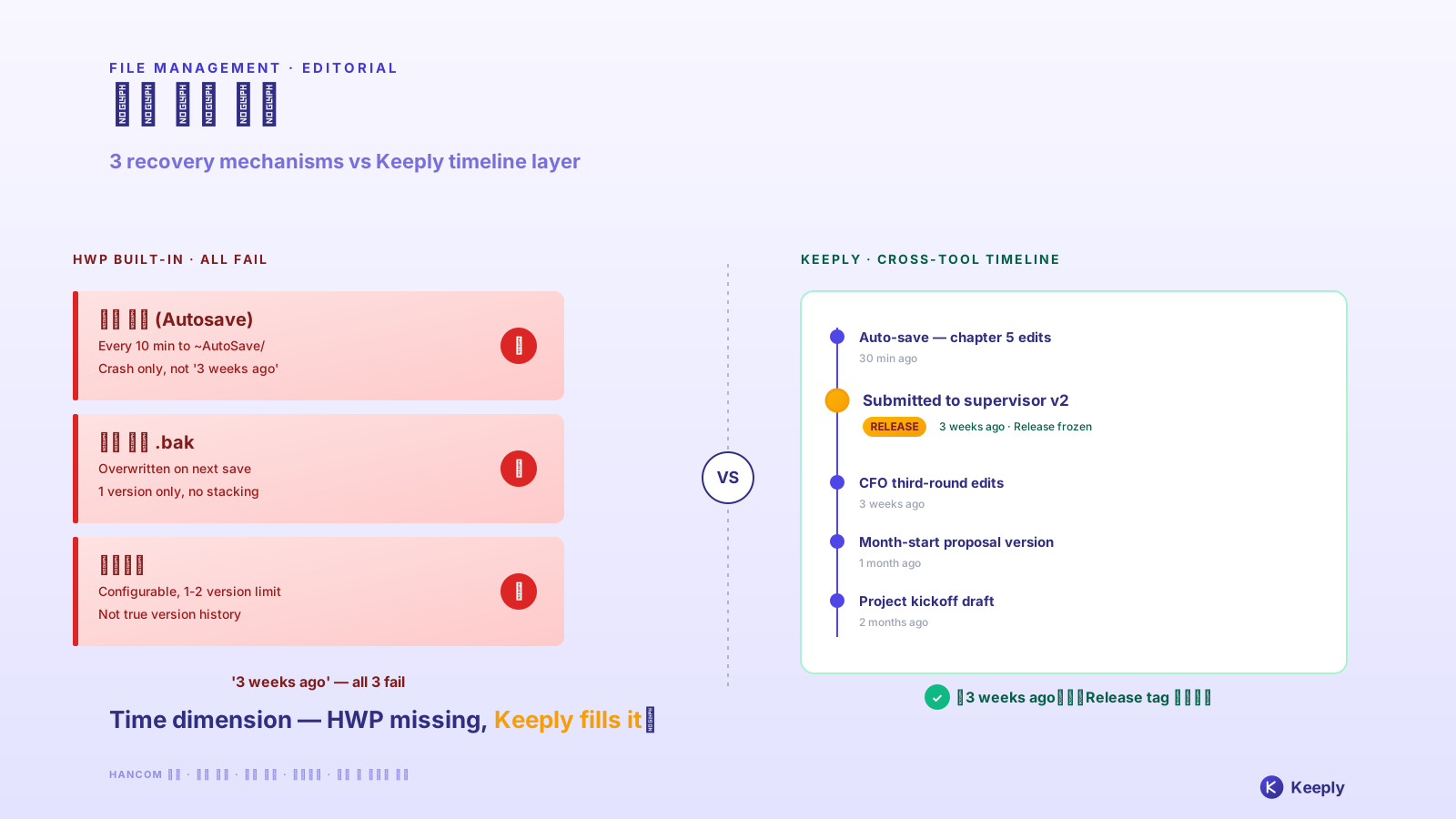
- Release freeze: on board-approval day, James hits Keeply “Save version” with tag “Client signed v2.3” — that version is frozen on local + Keeply’s own backup location, unaffected by SP auto-delete, preserved permanently
- Per-file notes: each version carries a 1-2 line note. Three months later scrolling the timeline, “CFO third-round edits,” “board signed,” tags by date — no guessing which of 100 SP versions is which
- Cross-tool portability: Keeply doesn’t depend on SP. Even if James switches to Dropbox / NAS, the timeline lives locally + in Keeply’s backup location, not locked by any cloud vendor’s cap
SP keeps doing team collaboration sync + storage compressed to 100, Keeply gives unlimited per-file version history + important version freeze. Two parallel tools, each doing what it does best.
Another move that comes up often in 5-person collaboration: a colleague has edited the same proposal.docx on SP, and you want to apply their version on top of your locally edited copy. Keeply’s “apply colleague’s version” dialog looks like this:
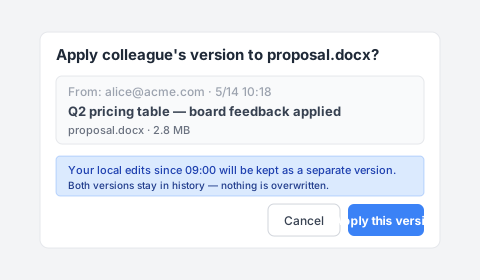
Note the blue hint line — your local edits after 09:00 aren’t overwritten, they’re saved as a separate version, both kept in the history. No more emailing “latest_version.docx” back and forth, no fear of clobbering your own edits with the wrong copy.
3 scenarios where you don’t need Keeply with SharePoint
Honest list:
Enterprise compliance archive. SOX, HIPAA, GDPR need audit chain + encryption + retention period management — use Microsoft 365 Backup / Veeam / Acronis. Keeply is for daily version management, not compliance.
Under 500 versions + no auto-delete needed, small team. If your storage quota isn’t even at 50%, you don’t need auto-delete — SP’s default 500 is plenty, Keeply is overkill.
100% mobile-only workflow. Keeply is desktop-first, light on mobile. If your team is 90% Office mobile + SharePoint mobile editing, Keeply isn’t in the main view, value isn’t visible.
FAQ
Q1: How many versions does SharePoint keep per file?
500 major versions (Microsoft Learn). With major/minor versioning, up to 511 minor on top. Oldest auto-deleted past that, no notification.
Q2: What is SharePoint auto-delete?
Late 2024 Microsoft feature — IT admin sets 500 / 100 / 50 / time cutoff in admin center. Storage cost vs history completeness trade-off.
Q3: Same as OneDrive version history?
Same underlying storage (SP document library) + same mechanism. Difference: use case (personal vs team) + admin setting controllability.
Q4: What to do if a version from 6 months ago is gone after auto-delete?
Pre-cutoff versions permanently deleted, even Recycle Bin can’t recover. Avoid by using external tools to preserve key versions — e.g. Keeply Release-freeze.
Q5: Storage quota tight, don’t want auto-delete?
3 options: (1) pay for more storage; (2) enable auto-delete and accept history loss; (3) external tools moving key versions outside SP.
Q6: Does Keeply conflict with SharePoint?
No, runs in parallel. SP for sync collaboration, Keeply for unlimited per-file version history + Release-freeze.
See also
The pillar file version management complete guide.
Side-by-side:
- OneDrive version history: 500 cap + 30-day window — same MS family, personal cloud counterpart
- Excel version history limits
- What Keeply saves vs backup and cloud tools
James set auto-delete 100 in SP admin center. Next month storage drops back to safe.
But today the client asks for the version the board signed off on — SP has deleted it for him.
Microsoft has the trade-off in the docs. You don’t need SharePoint not to age — you need a tool that catches the history when SP starts compressing storage.
About the author: Ting-Wei Tsao, founder of Keeply. LinkedIn