【2026 File Management】OneDrive version history: 500 cap + 30 days, by Microsoft's own docs
Microsoft Learn states it plainly: OneDrive keeps up to 500 major versions per file. Recycle Bin retains deleted items 30 days (personal) / 93 days (work). AutoRecover is a separate Office-client crash buffer. Here's where the cap hits and how Keeply Release freeze fills the gap.
【2026 File Management】OneDrive version history isn’t unlimited — 500 cap + 30-day window in Microsoft’s own docs
Microsoft Learn says it plainly: 500 + 30 days. But 90% of how-to articles teach the feature, not where it breaks.
“OneDrive saved you 200 times. Then on the 501st, it quietly deleted your oldest version — without telling you.”
This isn’t a bug. It’s the 500 major-version cap Microsoft Learn has stated all along. But 90% of OneDrive version history tutorials teach you how to use it, not where it breaks. This piece fills that gap — three OneDrive mechanisms (version history 500 cap / Recycle Bin 30-day window / AutoRecover) often mistaken as one, then how Keeply catches the post-cap scenarios.
Contents
- How Keeply keeps OneDrive history from disappearing on the 501st save
- OneDrive’s three mechanisms: 500 / 30-day / AutoRecover — different things
- The 500-version cap: Microsoft’s own number and when you hit it
- Recycle Bin 30 / 93 days: a delete-time window, not version history
- AutoRecover: Office crash buffer, completely separate from version history
- Keeply fills the gap: Release freeze + per-file note after the cap
- 3 scenarios where you don’t need Keeply with OneDrive
- FAQ
How Keeply keeps OneDrive history from disappearing on the 501st save
Here’s what happens. Tina is a consultant. She stores proposal.docx on OneDrive — 200+ versions accumulated over six months. The client signs off today. Next March she wants to look back at the original proposal version — is OneDrive going to have it?
In Keeply, this project’s timeline looks like this:
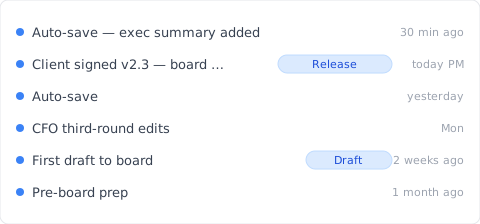
“Client signed v2.3 — board approved” gets its own row with a Release tag — that’s her this afternoon, after the client signed off, hitting “Save version” in Keeply’s main window and writing a note:
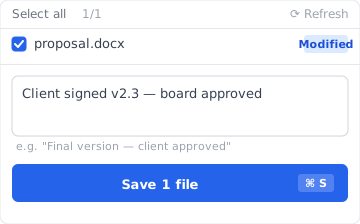
Write “Client signed v2.3 — board approved”, save the version. Next March when she pulls up the timeline, the tag is right there — unaffected by OneDrive’s 500 cap, never auto-deleted.
Two actions, total:
- Save—Ctrl+S in Word as usual. OneDrive syncs to cloud (as before). Keeply polls in background within 30 min, sees the change, auto-saves a version to its own timeline.
- Mark milestone—after the client signs off, hit “Save version” in Keeply’s main window, write a one-line note.
Now let’s unpack OneDrive’s three mechanisms — why version history disappears on the 501st save.
OneDrive’s three mechanisms: different things, often confused
When OneDrive says “version history,” it’s actually three different things blended into one term. Pull them apart:
| Mechanism | What it is | Limit | Trigger |
|---|---|---|---|
| Version History | Each version of a cloud file | 500 major versions (MS Learn) | Auto on every save |
| Recycle Bin | Window after file deletion | 30 days personal / 93 days work or school (MS Support) | Manual / sync delete |
| AutoRecover | Office client crash buffer | Default 10-min interval | App crash / force-quit |
Three different things — confused as one, you’ll look in the wrong layer. “I can’t find my file from 6 months ago” might be the Version History 500-cap kicking in, might be the Recycle Bin 30-day window expired, might be AutoRecover overwritten ages ago. Different problems, different solutions.
The 500-version cap: Microsoft’s own number
Microsoft Learn states it clearly: SharePoint / OneDrive document libraries keep up to 500 major versions per file (with major/minor versioning enabled, up to 511 minor versions on top).
What happens after: the oldest version is automatically deleted to make room for the new one. No notification. No cancellation option.
Who hits the cap:
- Consultants — 3 saves/day on a proposal × 22 working days = ~66 versions/month → cap in 7-8 months
- Designers — 5-8 saves/day on a design file → cap in 3-4 months
- Writers / lawyers — 10+ saves/day on a manuscript → cap in under 3 months
High save frequency + multi-month project = high chance of hitting the cap. Microsoft doesn’t warn you. The UI doesn’t flag it. You find out when you go looking.
Recycle Bin 30 / 93 days
The Recycle Bin is a delete recovery window, not an extension of version history. Common confusion: “I have 30 days to recover deleted files” ≠ “I can roll back to a version from 6 months ago.”
Per MS Support:
- Personal account: 30-day retention
- Work or school account: 93-day retention
After expiration, items are permanently deleted from the second-stage Recycle Bin.
Version History and Recycle Bin are two separate systems. Modify proposal.docx from v200 to v201 — old version goes into Version History (not Recycle Bin). Delete proposal.docx — entire file goes into Recycle Bin (along with its version history). The former hits the 500 cap; the latter hits the 30/93-day cap.
AutoRecover ≠ version history
AutoRecover saves .asd temporary files in Word / Excel / PowerPoint desktop clients — default 10-minute interval — only useful in:
- App crash (blue-screen / hang)
- Force-quit / system power-off
- Closing without saving, then a “do you want to recover?” prompt on next open
Completely separate from OneDrive cloud version history. The “we found an unsaved version” prompt is AutoRecover, not cloud history.
For details on a related pattern, see Photoshop autosave isn’t version history — Adobe’s parallel confusion in the design space.
Keeply fills the gap — after the OneDrive cap
Tina’s proposal.docx hit the 500 cap. The client suddenly wants the 8-month-old proposal version — OneDrive doesn’t have it anymore.
In Keeply, three things land in one tool:
- Release freeze: on Feb 14 when the client signed off, Tina hit “Save version” and tagged it “Client signed v2.3” — that version becomes a separate snapshot, never overwritten by the next 500 saves, kept forever. The OneDrive 500-cap doesn’t apply.
- Per-file note: every version can carry a one-line note. Three months later, Tina scrolls the timeline and sees “CFO third-round edits,” “Client signed,” “Pre-board prep” — no need to dig through 12
_FINALfiles trying to guess which is which. - Cross-tool portability: Keeply doesn’t depend on OneDrive. Switch to Dropbox / NAS / a new laptop — the timeline still lives locally + in Keeply’s own backup location. No cloud vendor’s cap locks you in.
When the client email lands, Tina opens the Keeply timeline, finds the Feb 14 “Client signed v2.3” row, and right-clicks to restore — this dialog comes up:
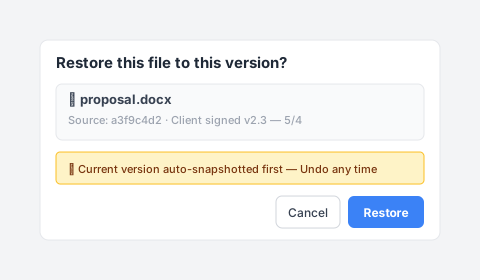
She clicks Restore. Three seconds and proposal.docx is back to its Feb state; the current version is auto-snapshotted, so Undo is always one click away. OneDrive keeps doing what it’s strong at (collaborative sync). Keeply gives you unlimited per-file version history.
3 scenarios where you don’t need Keeply with OneDrive
To be straight — Keeply isn’t for everyone:
Enterprise compliance archive. SOX, HIPAA, GDPR require audit chain + encryption + retention period management — go with Microsoft 365 Backup, Veeam, or Acronis. Keeply is for daily version management, not compliance.
Contract signing / legal audit. Need signatures + immutable records — use DocuSign or Adobe Sign. Keeply tracks version trails but doesn’t certify signatures.
Less than 1 save per day, personal use. If your notes.docx gets edited once a week — you’ll never hit OneDrive’s 500 cap in 10 years. Keeply isn’t urgent.
FAQ
Q1: How many versions does OneDrive keep?
500 major versions (Microsoft Learn). Oldest auto-deleted after that, no notification.
Q2: How long does OneDrive keep version history?
Version history itself has no time limit (bounded by 500 cap). Time-limited is the Recycle Bin: 30 days personal, 93 days work.
Q3: Is OneDrive version history the same as AutoRecover?
No. Version history is OneDrive’s cloud-side per-version preservation. AutoRecover is Office desktop crash buffer (10-min interval). Different storage layers.
Q4: Why can’t I find my OneDrive file from 6 months ago?
Two possibilities: (a) exceeded 500-cap, auto-deleted; (b) you searched Recycle Bin instead, 30-day window closed. Heavy users hit cap in 7-8 months.
Q5: What happens after exceeding 500 versions?
OneDrive silently deletes the oldest. No warning. To solve, need a tool without a cap — Keeply Release freeze for example.
Q6: Does Keeply conflict with OneDrive?
No. Runs alongside. OneDrive for collaboration sync, Keeply for unlimited per-file version history + notes + Release freeze.
See also
The pillar file version management complete guide — 4 structural reasons your tools were never designed for keeping file history.
Side-by-side:
- Excel version history limits — Excel’s parallel 500-mechanism + sibling scenarios
- What Keeply saves vs backup and cloud tools — three different things, full comparison
- The client asked which version is the final — Word version history + the “client wants that version” scene
Tina’s proposal.docx hit the 500 cap on OneDrive. The client wants the 8-month-old proposal next month — by Microsoft’s own rule, auto-deleted, gone.
But in Keeply she tagged “Client signed v2.3” as a Release. Half a year later, the client asks — three seconds to find it.
Microsoft has the 500 number in the docs. You don’t need OneDrive not to age — you need a tool that catches you when it does.
About the author: Ting-Wei Tsao, founder of Keeply. LinkedIn