【2026 File Management】How to use Keeply: skip 30 features, get on board with 2 actions
Keeply doesn't ask you to spend 14 days as a student — drag a folder in, keep working, and version history is already running by day 1. This piece walks through a real 7-day trial and lists 4 scenarios where Keeply honestly isn't the right tool for you.
【2026 File Management】How to use Keeply: skip 30 features, get on board with 2 actions
You don’t need to become an expert first. Drag a folder in, keep working. Version history is already running.
Table of contents
- Why do you push back on new tools?
- Why do you give up on a tool?
- So what are the 2 actions?
- Let me tell you what you’ll experience
- When Keeply isn’t right for you
Mr. A juggles a lot of projects, and he uses a notebook every day to track what he’s done. He just heard Keeply is a great file-note software. He opens the homepage and sees “Get started in 3 steps” and “7-day free trial.” The last tool he tried, he was still lost on day 14. Patience ran out before any value showed up. This time he wants 10 minutes to decide.
It’s not that you’re slow. It’s that traditional software’s learning curve assumes you’re willing to drop everything today and become a student for 14 days.
Why do you push back on new tools?
You push back on new tools because most of them assume you can stop your current work today and become a student for 14 days. But you’ve got a project shipping tomorrow. You don’t have a 14-day gap to spend on anything.
You tried installing a tool yesterday. The docs are 50 pages. There are 30 new terms. You’re shipping a project tomorrow.
You think: “I’ll come back to this next week and take my time.” Then you never open it again.
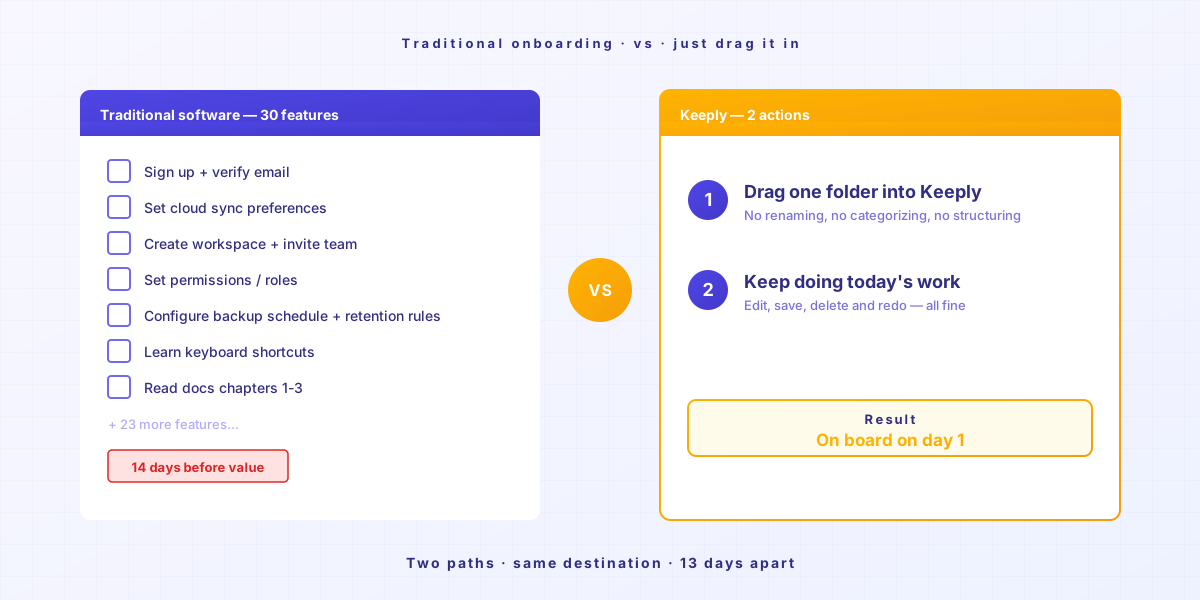
Most software companies treat “learn it in 14 days” as the natural order. Industry research shows users who finish less than half of onboarding churn within 14 days at 3 times the rate of users who finish the whole thing.
In other words: the software assumes you have 14 free days. It assumes your work can wait until you’ve learned it.
Your next project is nowhere in that 14-day assumption.
Why do you give up on a tool?
Learning a new tool usually takes about 14 days — and most of those days are still spent feeling around.
Halfway through that phase, most people will want to close the tab.
Before I built Keeply, I tried plenty of new tools myself. A lot of them felt like a hassle on day 1, and I’d quietly fall back to my old way of doing things.
Later I realized: the tools I actually stuck with had one thing in common — they were intuitive enough to just use.
One time I was using AI to write code, and the AI went off the rails. I’d already lost track of where it had gotten to. Thankfully I had been keeping file notes the whole time.
Open the history. Back to a state I could control.
That’s when I understood: a good tool isn’t the one with the most features, it’s the one simple enough to get the hang of. I hadn’t learned a single feature, and just by quietly catching that file, the tool had already paid for itself.
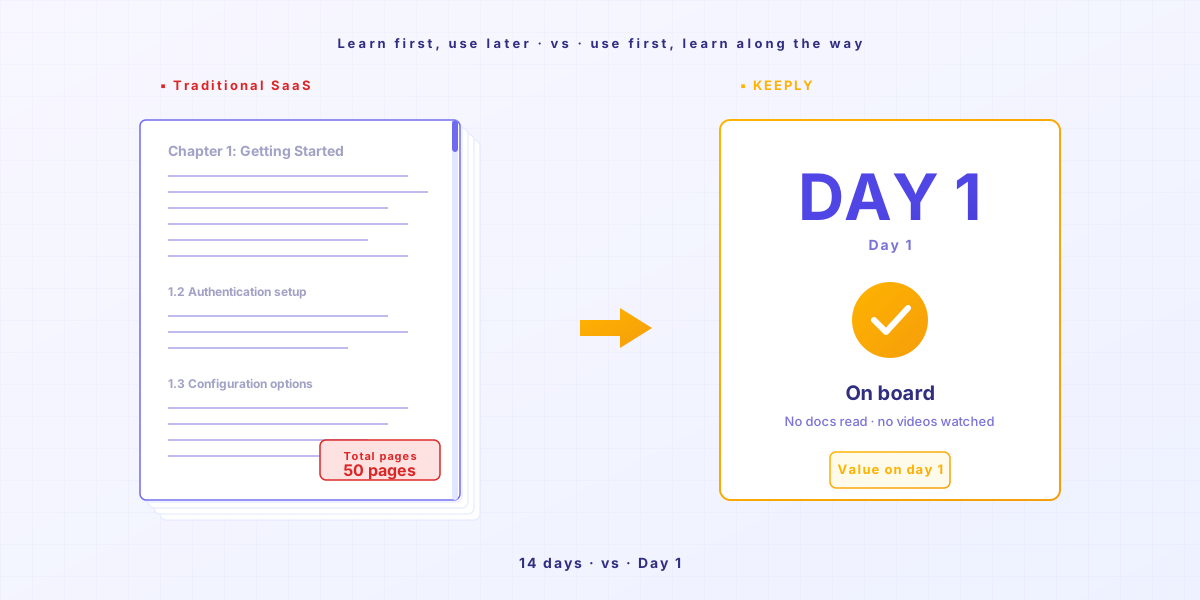
The tool isn’t the problem. This category of software just shouldn’t be designed around “learn first, use later.”
So what are the 2 actions?
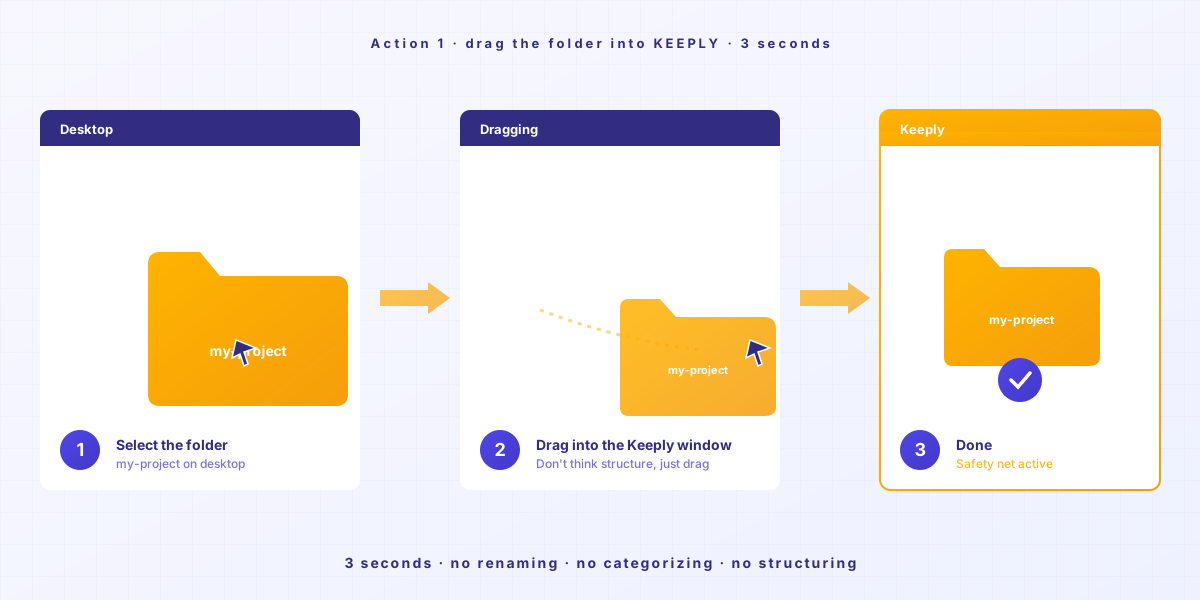
There are only two: drag a folder into Keeply, then save a version when it matters. No commands to learn, no 30-page docs. Saving a version is one click — Keeply’s “save version” button (or Cmd+S inside Keeply) — and if you’d rather not think about it, switch on auto-save and Keeply captures changes every 15–30 min.
Action 1: Drag a folder into Keeply
You literally just drag it in. Don’t rename, don’t categorize, don’t think about structure.
Action 2: Save a version when it matters
Do whatever you were going to do today. When you finish a section, when a client signs off on a version, before a big risky change — click Keeply’s “save version” and add a one-line note (e.g. “client-approved”). That moment lands in the Timeline on the left.
Don’t want to remember to click? Switch on auto-save and Keeply captures your changes every 15/30/60 min (your choice) — your manual saves carry your notes, the auto ones are timestamped, both on the same timeline.
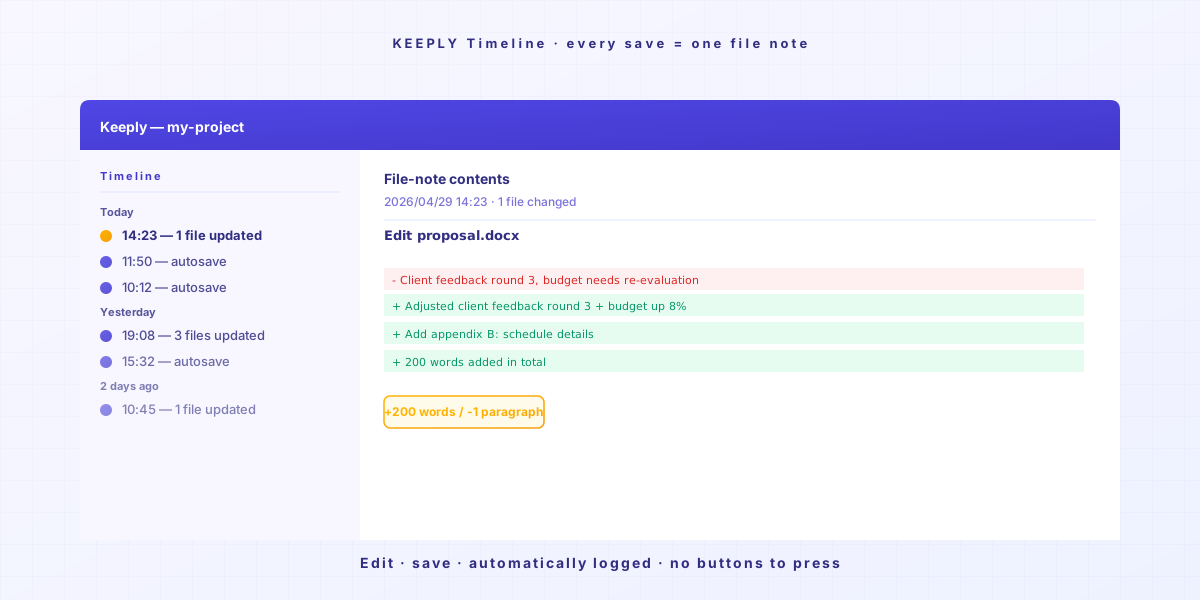
You don’t have to rename your files either. That _v3_actually_final.docx keeps its name. Keeply doesn’t touch your habits.
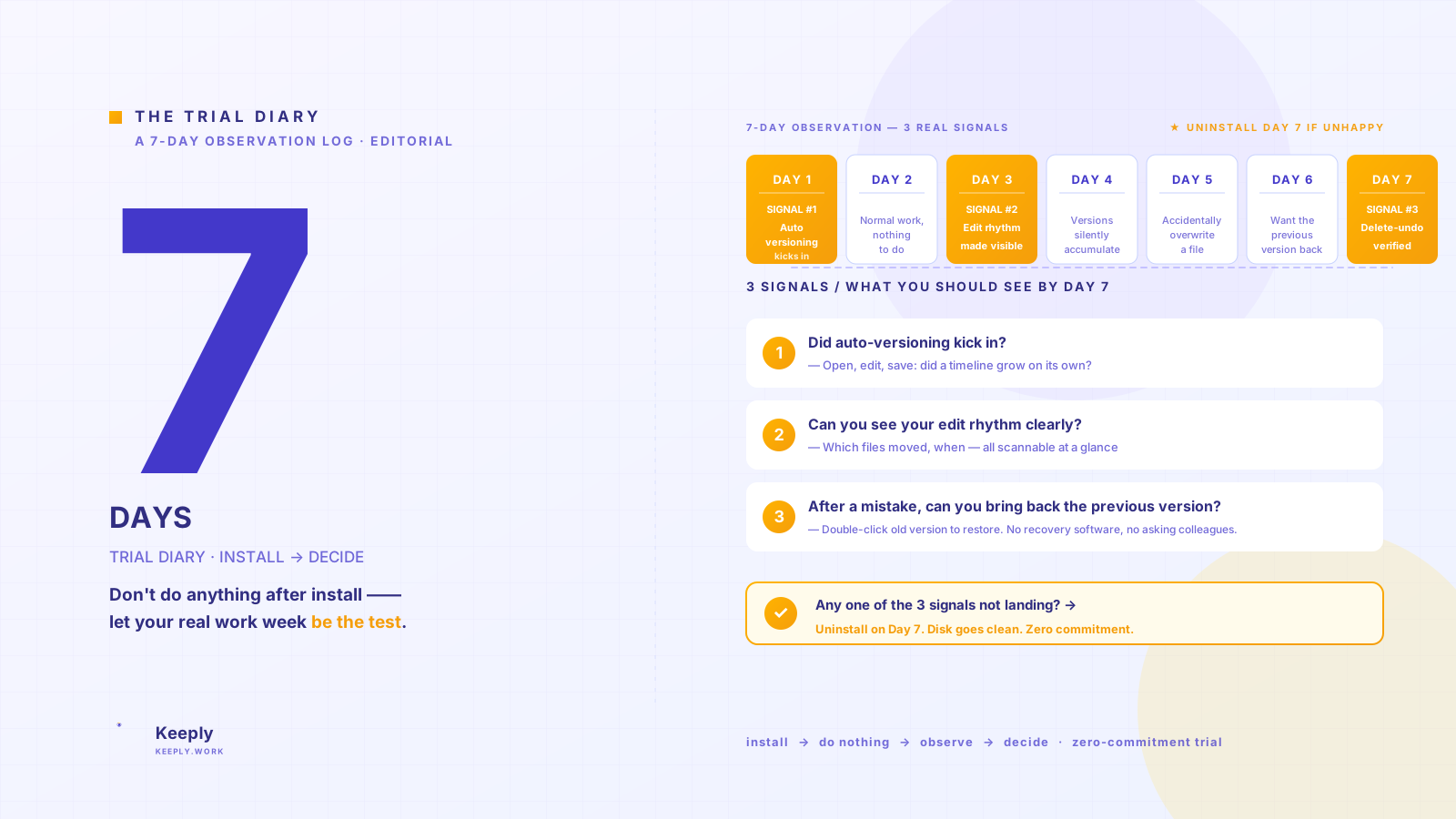
End of day 1, you’ve got 1 day of file notes. End of day 7, you’ve got a full week.
Intuitive use, that’s the whole trick.
Let me tell you what you’ll experience
Day 1
Drag a project in. Save.
Day 2-3
Edit 200 words in an existing file. Save.
Through the Timeline you watch your own file notes start piling up. Click into a note, see what you deleted and what you added.
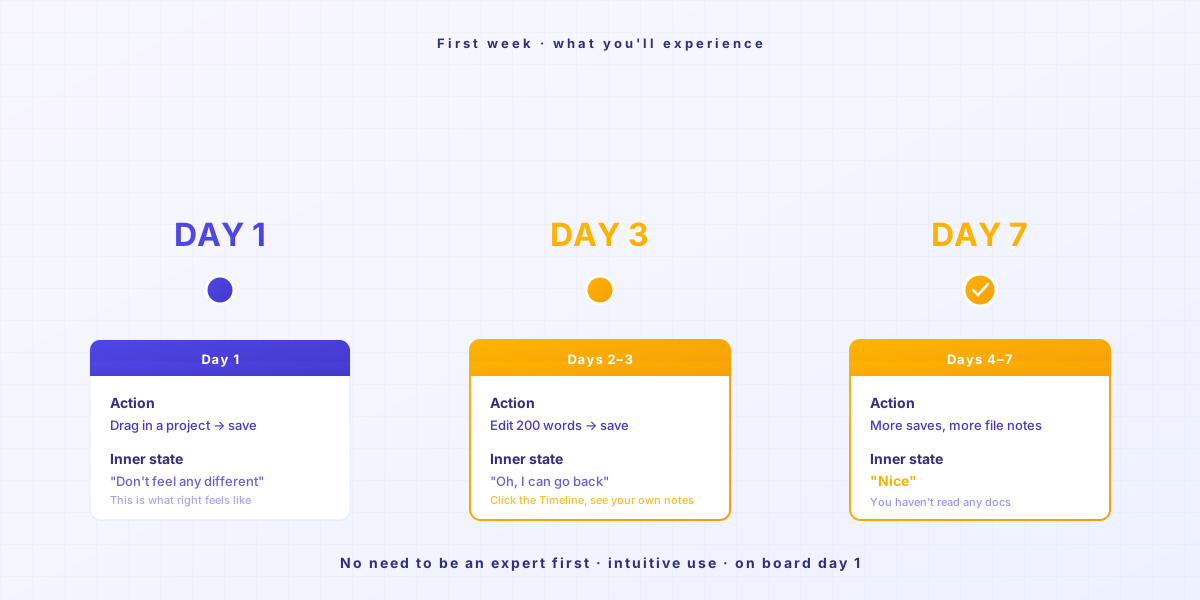
Day 4-7
You’re stacking more and more file notes.
One day you’ll notice — I’m glad I have this software.
When Keeply isn’t right for you
Keeply doesn’t fight for every scenario. In 4 cases, another tool is the better call.
- If you need cross-device cloud sync: pick IDrive or Backblaze. Keeply lives on your computer. It’s not cloud-native. (What Keeply actually saves vs. backup and cloud tools.)
- If you need system restore or full disk backup: pick Acronis True Image. Keeply doesn’t do that.
- If you’re an IT pro managing 50+ machines: pick MSP360. Keeply is for individuals and small teams.
- If you just don’t want to lose personal documents, Windows File History is built in and good enough. You don’t need to install anything.
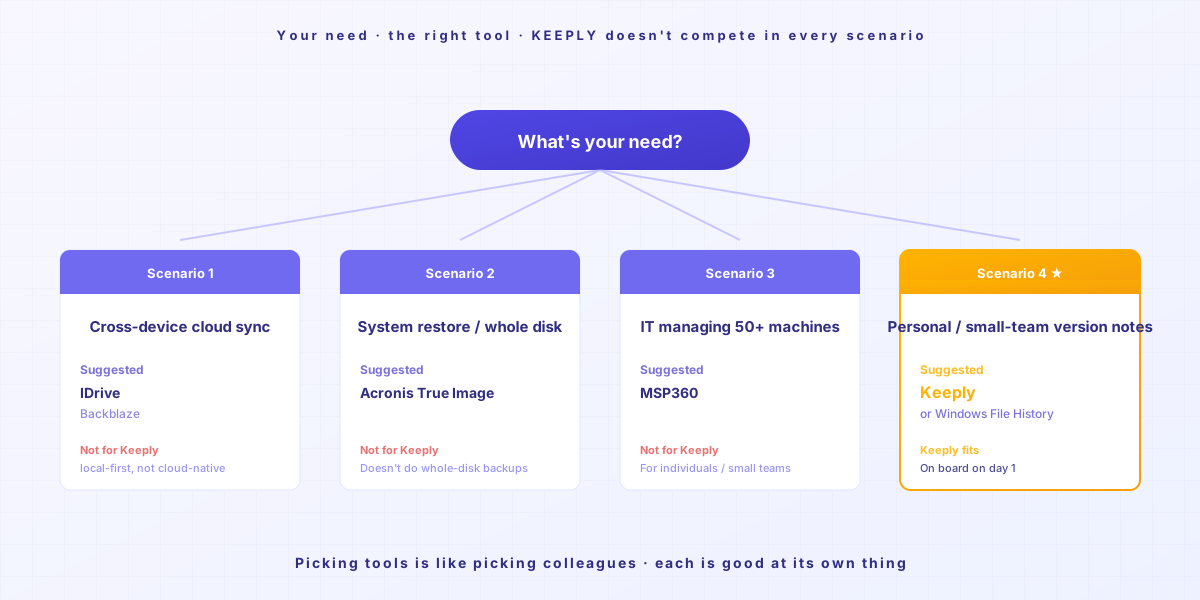
Picking a tool is like picking a coworker. Each one has its strong scenario. Be honest about it, and you’ll burn fewer 14-day trials.
Wrapping up
You want to try a new tool, and you don’t want to lose 14 days to it. That’s fair.
Drag a folder into Keeply. Keep doing today’s work.
On day 7, open the Timeline and take a look. You’ll get it.
Further reading
- The complete guide to file version management (PILLAR 1, why version management matters)
- Your first week with Keeply: a 7-day field journal (what to actually do after the install)
- What Keeply actually saves vs. backup and cloud tools (Keeply vs Dropbox / Time Machine — the practical difference)
- Vibe coding overshot? One move to roll back to the last working version (the classic AI-broke-my-file use case)
About the author: Ting-Wei Tsao, founder of Keeply. LinkedIn