【2026 File Management】Keeply tutorial: do nothing in week 1, see 3 real signals on days 1, 3, 5
Don't rush into the setup wizard after installing Keeply. Use your real workdays in week one to verify automatic version tracking, modify cadence, and delete recovery — three signals. Unsatisfied on Day 7? Remove it, zero burden.
【2026 File Management】Keeply tutorial: do nothing in week 1, see 3 real signals on days 1, 3, 5
Don’t rush into the setup wizard after installing Keeply. Use your real workdays in week one to verify automatic version tracking, modify cadence, and delete recovery — three signals. Unsatisfied on Day 7? Remove it, zero burden.
Table of contents
- Why multi-step setup wizards cause new users to quit on Day 1
- Keeply’s bet: let your real workflow generate the evidence in 7 days
- Day 1: Add a file, watch how Keeply records it
- Day 3: Edit a file, see how many versions Keeply keeps
- Day 5: Delete a file, see whether you can get it back
- Day 7 verdict: Did all three things show up?
- Honest limits: three situations where you shouldn’t use Keeply
- After Day 7
You can install Keeply and run through the setup checklist. Or you can do nothing and live your normal week.
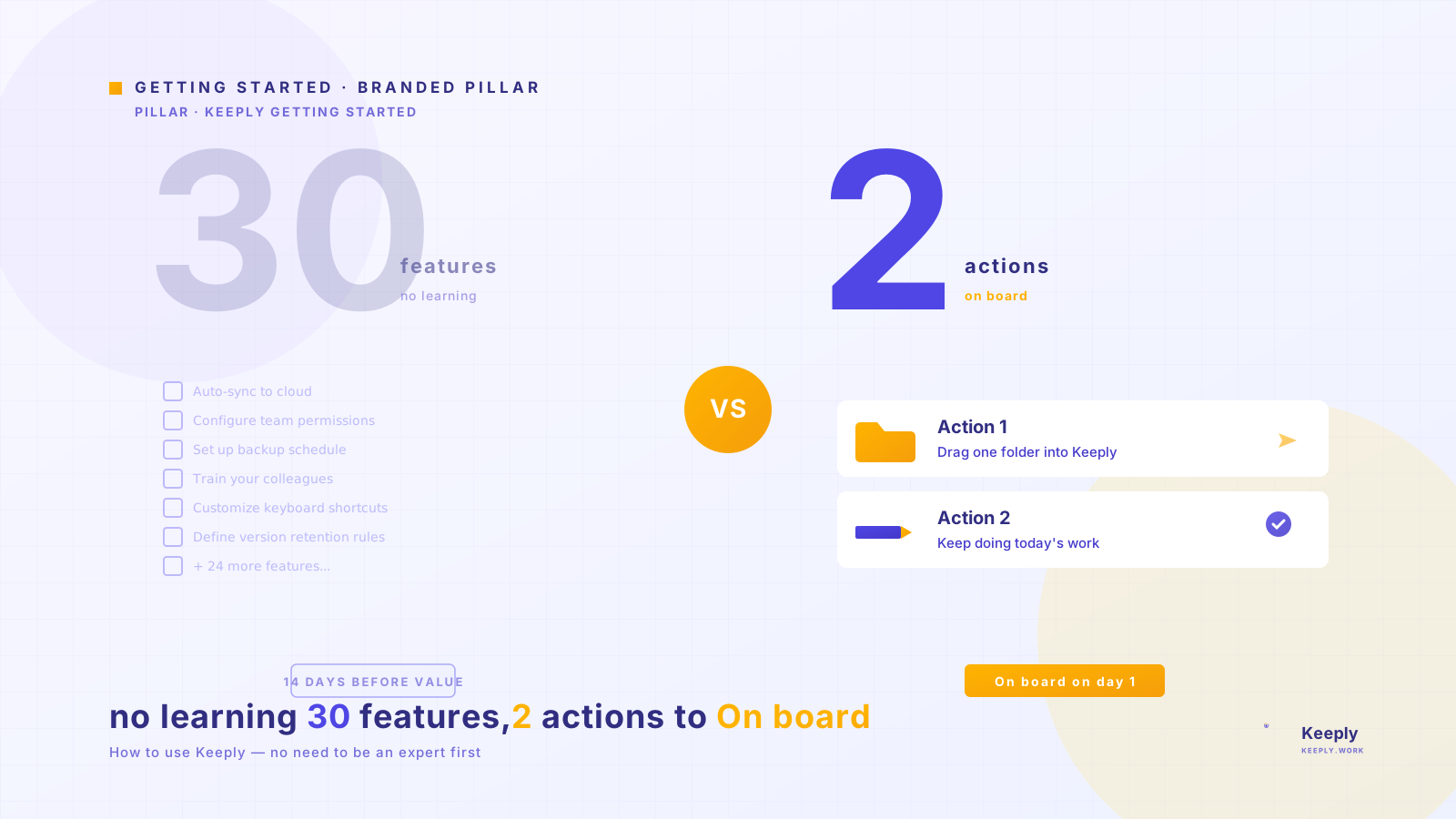
The second path is the one Keeply was designed around. Most software, when you finish downloading, greets you with “Welcome! Let’s start the 5-step setup.” Keeply is different: open it and it barely asks you anything. No setup wizard, no “please choose your work mode,” no checklist.
Before I built Keeply I tried a lot of tools myself. The first-week pain was always the same: open the app and what follows is tutorial videos, integration options, configuration steps stacking up. You’re tired before you’ve even started using it — and the moment you need the tool most happens to be when you’re tired.
So Keeply’s bet is this: let your workday flow naturally for a week. Check Keeply every 2–3 days to see what it has quietly recorded. By Day 7 you have a week of real evidence.
Which days specifically? The three things you’ll do:
- Day 1: you add a file
- Day 3: you modify a file
- Day 5: you delete a file
These are the three things a version-management tool ought to handle. If it can’t see them, keeping it around is pointless. If it sees them and handles them naturally, by Day 7 you’ll have your answer.
Why multi-step setup wizards cause new users to quit on Day 1
When I built the first version of Keeply, I also planned a 5-step setup wizard. After three rounds of user testing with newcomers, I tore the entire wizard out.
The problem isn’t that the wizard was badly written. The problem is that newcomers on Day 1 have no context yet to answer the wizard’s questions:
- “Pick your work mode”: how would I know what mode I am? I just installed.
- “Pick which folders to track”: how do I know which matter? I haven’t put anything in this tool yet.
- “Set daily / weekly / per-save snapshot frequency”: I have no baseline to judge what’s reasonable.
- “Configure exclusions”: I don’t know which junk files I’ll save in the future.
- “Connect your cloud account”: I just installed; why would I hand you my account?
A 5-step wizard is 5 context-free decisions. Most newcomers close the window at step 1, and within 24 hours the app becomes another half-installed icon.
The passive-observation path is the inverse: you don’t answer anything. Keeply watches what you do for 7 days, and on Day 7 you already have the context to decide whether to continue, whether to open settings.
Keeply’s bet: let your real workflow generate the evidence in 7 days
Which days specifically? The three things you’ll do: add, modify, delete. Each event lines up with one observation day, with 2-day gaps so you don’t have to open Keeply daily.
After each event I’ll give you two checklist lines: “✅ Trust signal” says “if you see X, the tool passes”; “❌ Failure point” says “if you see Y, the tool isn’t right for you.” Both matter: the first is marketing, the second is what gives you a clean exit condition.
Day 1: Add a file, watch how Keeply records it
On your first workday after installing Keeply, you’ll add at least one file. Maybe a new Word report, a freshly saved PDF, a new design file. This is a version-management tool’s first litmus test.
You don’t need to do anything. Save the file where you’d normally save it. Desktop, Documents, shared folder, cloud-sync folder — Keeply can see them all.
Before lunch, open Keeply for a quick look. That file should be visible in the Keeply interface with a timestamp next to it. No complex menu, no “would you like to track this file?” popup. It saw it automatically.
If you want to go one step further, click “Save version” and write a one-liner note. Keeply pops a side panel for it:
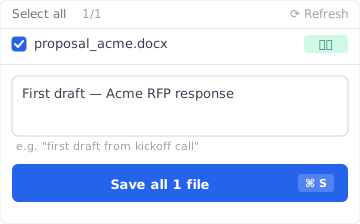
Anything in the note field works — “first draft after kickoff” or “post-client-visit revision” plain language is most useful. Six months later, that one line is your memory anchor when you scroll the version history.
- ✅ Trust signal: the new file doesn’t need to be “added” to Keeply; it shows up automatically with a timestamp.
- ❌ Failure point: the new file isn’t visible in Keeply. That means the tool doesn’t fit your environment — a Day 1 answer is better than a Day 30 surprise.
Day 3: Edit a file, see how many versions Keeply keeps
Day 3’s observation is a bit harder than Day 1: you edit yesterday’s file.
A file usually gets edited like this: open it in the morning, change something, Cmd+S; keep going, Cmd+S again; save once at lunch, save the final version before leaving in the afternoon. Over a workday, you might press save 10 to 20 times on the same file.
Question: how many versions should the tool keep? Keep too many (one per Cmd+S) and you end up looking at 17 nearly identical versions — useless. Keep too few (one final version a day) and your morning’s edits vanish, no different from having no version control. Keeply’s design is to decide on its own which saves are “meaningful.” The save before lunch is one version. The save before leaving is another. The small in-between edits don’t each get their own.
By Day 3 evening, when you open that file’s version panel, you should see 2 to 4 versions, not 17. Each has a timestamp. You can click any one to roll back to that state.
Opened up, it looks like this — proposal_acme.docx from Day 1’s first draft through today’s client sign-off, 5 versions accumulated in 3 days (2 you wrote notes for, 3 auto-saves):
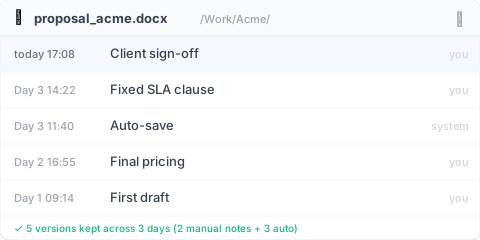
The “auto” rows are Keeply quietly saving in the background; the “you” rows are the moments you actively marked. Six months from now, you just read the note column to know which version is which — no memory required.
- ✅ Trust signal: the version panel shows 2–4 timestamped key versions, each clickable to restore, not 17 trivial entries.
- ❌ Failure point: 17 near-identical versions, or only 1 version left. That means it doesn’t match your editing cadence.
For the deeper theory of version history design, see the pillar: complete guide to file version management.
Day 5: Delete a file, see whether you can get it back
Day 5’s observation is the most brutal: you delete a file.
Deletion is unavoidable. Cleaning your desktop, emptying the trash, dragging something into the trash by mistake, tidying a folder. Over a week you’ll delete at least once. I’ve personally watched designers in Mac empty the trash only to realize an important file was caught up in it — an entire afternoon down the drain.
Keeply’s design keeps its delete list separate from the system trash. Files you delete from Finder or File Explorer still have their version history in Keeply. The system trash being emptied doesn’t matter.
On Day 5, deliberately delete an unimportant test file. Then open Keeply, find the “deleted files” area (the exact location varies a little by OS). The file should still be there, and clicking “restore” pulls it back.
The list is sorted by time bucket, so the one you just deleted sits at the top:
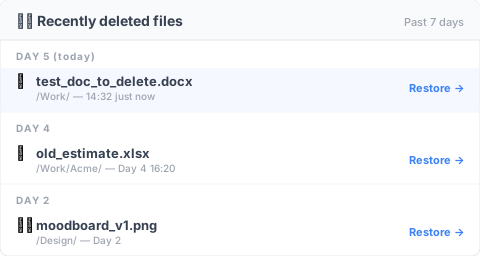
Each entry is preserved for at least 30 days — it won’t vanish the way the Mac trash does when emptied. Click “Restore” and the file goes back to its original folder.
Compare with the tools you’re used to: Mac trash emptied — gone. Windows Recycle Bin emptied — gone. OneDrive past the 30-day retention — gone. Time Machine that didn’t back up that moment — gone. Keeply doesn’t rely on these underlying retentions. It’s a tool-layer version history, recorded independently.
- ✅ Trust signal: the deleted test file appears in Keeply’s “deleted files” list, and “restore” brings it back.
- ❌ Failure point: the file you just deleted isn’t in the list. That means Keeply isn’t watching the folder you actually work in, or the delete event got skipped.
Day 7 verdict: Did all three things show up?
Day 7 is verdict day. Open Keeply and think back on the week:
- How many files did I add. Did Keeply see them?
- Which files did I edit. Did Keeply keep a reasonable number of versions?
- Which files did I delete. Can Keeply still pull them back?
Open Keeply’s main timeline and the 7 days look like this:
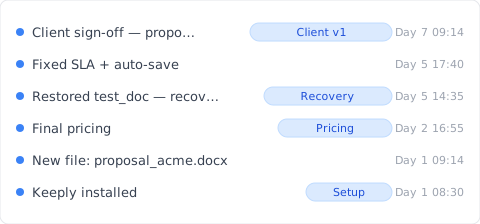
Every entry has a note, and every entry is clickable to restore. Looking back, you don’t need to remember dates or filenames — the timeline tells you what you did this week.
All three answers “yes” — you can leave Keeply running in the background with confidence. It passed the first-week trial. Your real work generated the evidence of whether it can do the job, in 7 days. That tells you more than any 30-item setup checklist.
One answer that’s borderline? Day 7 is a fine moment to walk away. Honest abandonment beats stacking more settings. That’s the upside of the passive-observation path: 7 days ago, you hadn’t invested anything in this tool.
Honest limits: three situations where you shouldn’t use Keeply
I have to be honest about scenarios where Keeply won’t help you in week one:
- Full-disk image backup: Keeply is a version-history tool, not a disk-image backup. You still need Time Machine, Carbon Copy, or an external drive following the 3-2-1 backup rule.
- 50GB+ video/audio assets: Keeply’s handling of single-file mega-media is still being planned. Video studios should pair it with LFS tools or a dedicated NAS.
- Heavy compliance audit (finance, healthcare): Keeply provides personal or small-team version history, not SOX or HIPAA-grade immutable audit records.
After Day 7
If you decide to stay, the next week’s work is gradually integrating Keeply into your existing habits. This article won’t unpack that — see the “Week 2” section of the Pillar: Keeply getting started from zero.
If you decide to leave, uninstalling Keeply doesn’t leave any intermediate files on your computer. It was passive all along.
About the author: Ting-Wei Tsao, co-founder of Keeply. Find me on LinkedIn.