【2026 File Management】한글 (HWP) file recovery: 3 mechanisms + Keeply timeline layer
Hancom Hangul (HWP)'s autosave + .bak + backup file solve crash recovery and last-version rollback only. Need the version from 3 weeks ago? All three fail. Here's what each mechanism does, where they break, and how Keeply fills the timeline gap.
【2026 File Management】한글 (HWP) file recovery: 3 mechanisms + Keeply timeline layer
Hancom Hangul has 3 recovery mechanisms built in. Readers confuse all three as “version history” — each only solves one problem.
“The night before a paper deadline, 한글 crashes without saving — you open 한글, see an ‘auto-recovery’ popup, and 80% of your 3 hours of work comes back. But the version from 3 weeks ago for that proposal? You dig through ~AutoSave/ — gone.”
This is the real limit of 한글’s 3 built-in recovery mechanisms (Autosave / Temp save / Backup file): they solve crashes + last-version rollback, not time-based history. This article unpacks the differences between the three + how Keeply fills the timeline gap as a cross-tool layer.
Contents
- How Keeply makes HWP files “the version from 3 weeks ago is still there”
- HWP 3 recovery mechanisms: Autosave / Temp save / Backup file — what each one does
- Autosave: crash recovery, not version history
- Temp save .bak: 1-version backup, overwritten by next save
- Backup file: configurable in Preferences, still 1-2 version limit
- The real scenario where all 3 fail: overwrote old version + want 3 weeks back
- Keeply fills the gap: cross-tool timeline + Release freeze
- 3 HWP scenarios where you don’t need Keeply
- FAQ
How Keeply makes HWP files “the version from 3 weeks ago is still there”
Here’s what happens. Jiyeong is a civil servant. She writes her monthly report report.hwp in 한글 — 100+ saves accumulated over 6 months. Today her supervisor suddenly asks: “Can you show me that section from the version you sent 3 weeks ago?” She opens 한글’s “Recent files” — only goes back to last week. Opens ~AutoSave/ — only crash-recovery temp files. Opens report.hwp.bak — only the most recent 1 version. All 3 recovery mechanisms fail to retrieve the 3-week-old version.
In Keeply, it’s different. Same report.hwp looks like this in the Keeply timeline:
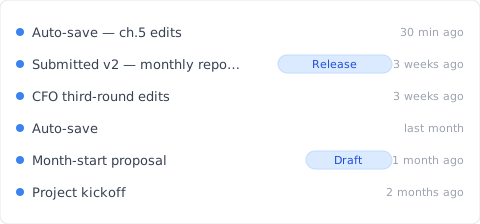
“Submitted to supervisor v2 — monthly report” gets its own row with a Release tag — that’s Jiyeong three weeks ago, after submitting to her supervisor, hitting “Save version” in Keeply’s main window and writing a note:
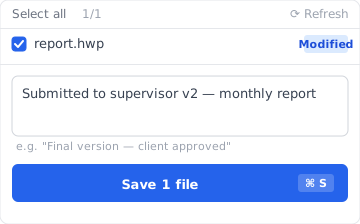
Write “Submitted to supervisor v2 — monthly report”, save the version. Three weeks later, scrolling Keeply’s timeline, the tag is right there — not bound by 한글’s limited temp folder.
Two actions, total:
- Save — Ctrl+S in 한글 as usual. 한글 writes
.hwpto the folder. Keeply polls in background within 30 min, sees the change, auto-saves a version to its own timeline. - Mark milestone — at significant moments (supervisor signoff / client approval / month-end seal), hit “Save version” in Keeply’s main window and write a note.
Below: unpack 한글’s three mechanisms — why all three fall short.
HWP 3 recovery mechanisms
When 한글 says “file recovery,” it’s actually three different things blended:
| Mechanism | What it is | Limit | Trigger |
|---|---|---|---|
| Autosave | Crash-recovery temp file | Default every 10 min, 1 copy to ~AutoSave/ | 한글 actively writes; only useful on crash / force-quit |
| Temp save .bak | Last-version backup | 1 version (overwritten by next save) | Auto-generated every save |
| Backup file | Configurable auto-backup in settings | Usually 1-2 versions | Every save (if configured) |
Three different things — confused as one, you’ll look in the wrong layer. “Can’t find the version from 3 weeks ago” might be autosave temp already deleted, .bak already overwritten by a new save, or backup file not enabled. Each mechanism only solves one scenario.
Autosave: crash recovery, not version history
한글 Preferences → Autosave saves a copy every 10 min by default to ~AutoSave/ (path configurable).
Only useful in:
- 한글 crash (application error)
- Force-quit (terminate from Task Manager)
- System power-off / forced restart
- Closing without saving — “Recover?” prompt on next open
Completely separate from version history: autosave doesn’t keep multiple versions (just the most recent 1 temp), can’t find “the version from 3 weeks ago.”
See Photoshop autosave isn’t version history — Adobe has the same autosave-confusion pattern.
Temp save .bak: 1-version backup
Every time you save an HWP file, a <filename>.bak copy is auto-generated in the same folder — the version just before the last save.
Key limits:
- Only 1 version: each save overwrites the old
.bak, no version stacking - Solves “saved this one wrong” scenario: can’t go back further
- Optional in settings: can be disabled in Preferences (default on)
Reader misconception: “.bak is version history” ❌. Actually just “most recent 1 version” record.
Backup file: configurable in Preferences
한글 Preferences → Backup file / Temp save can enable automatic .bak generation. For users who have it enabled, same mechanism as the previous .bak section (just different setting location).
Still 1-2 version limit, not true version history. Doesn’t help with “the version from 3 weeks ago” need.
The real scenario where all 3 fail
Jiyeong’s scenario analysis:
| Scenario | Autosave solves? | .bak solves? | Backup file solves? |
|---|---|---|---|
| 한글 crash, didn’t save | ✅ | ❌ | ❌ |
| Saved this version wrong, want last version | ❌ | ✅ | ⚠ depends on settings |
| Find supervisor-submission from 3 weeks ago | ❌ | ❌ | ❌ |
| Find proposal initial version from last month | ❌ | ❌ | ❌ |
| Client asks for “the version confirmed Feb 14” | ❌ | ❌ | ❌ |
The bottom 3 ❌s are “time-dimension” needs — none of the 3 HWP built-in mechanisms cover this layer.
Keeply fills the gap: cross-tool timeline + Release freeze
How does Jiyeong solve “find the version from 3 weeks ago”? Switch to Keeply. Three things in one tool:
- Cross-tool timeline: Keeply watches the folder, after each Ctrl+S saves 1 version to its own timeline — not dependent on 한글’s limited
~AutoSave/. Six months of saves = six months of version history (not 1-2 versions) - Release freeze: 3 weeks ago when submitting to supervisor, Jiyeong hit Keeply “Save version” with tag “Submitted to supervisor v2” — this version is frozen as a separate snapshot, not overwritten by subsequent saves, preserved permanently
- Per-file note: each version carries 1-2 lines of notes (“Supervisor submit v2”, “Client requested ch.3 revision”), three weeks later just scroll the timeline and find the tag instantly
Runs alongside HWP’s own autosave / .bak — no conflict. 한글 handles crashes + last-version rollback, Keeply handles time history + important-version freeze.
3 HWP scenarios where you don’t need Keeply
Honest list:
Locked-down environment / government / education. If you’re a civil servant or teacher using an IT-issued locked-down PC (no external software allowed) — don’t force this. Follow your IT department’s centralized backup policy (Veeam / Acronis). Keeply is for personal PCs / SMB / SOHO, not compliance archive.
Only using 한글 viewer to read others’ files. If you don’t actively edit and only open 한글 viewer for received .hwp files — no version management need, skip Keeply.
Single file, 1-2 saves then submit. One-off short documents (official letter reply / 1-page notice) saved 1-2 times — no timeline need, HWP built-in .bak is enough.
FAQ
Q1: Where does HWP autosave save?
Default ~AutoSave/ (path changeable in 한글 Preferences → Autosave). Default every 10 min, only useful on crash / force-quit, prompt on next open. Not version history, can’t find 3-week-old version.
Q2: HWP .bak vs autosave?
.bak is last-version backup (auto-overwritten every save), keeps 1 version. Autosave is crash temp file, completely different layer from version history.
Q3: Is HWP backup file reliable?
Still 1-2 version limit, not true version history. Insufficient for “3-week-old version” need.
Q4: All 3 fail, how to find 3-week-old version?
HWP built-in can’t recover. Need external tooling for continuous version backup — e.g. Keeply cross-tool timeline.
Q5: Keeply vs Hancom Office?
No conflict, runs alongside. 한글 handles crash / last-version, Keeply adds unlimited timeline.
Q6: Civil servant / teacher, can’t install external software?
Locked-down environment follows IT centralized backup policy (Veeam / Acronis), Keeply personal tool not suitable.
See also
The pillar file version management complete guide.
Side-by-side:
- Photoshop autosave isn’t version history — Adobe’s same autosave ≠ version history confusion
- Excel version history limits — Office’s parallel mechanism gap pattern
- What Keeply saves vs backup and cloud tools
Jiyeong submits her monthly report at month-end. 한글 crashes 3 times, autosave rescues each time’s work.
But the supervisor suddenly asks for “the version from 3 weeks ago” — autosave / .bak / backup file all fail to recover.
Hancom has the 3 mechanisms in its docs. You don’t need 한글 to be different — you need a tool that catches the time history when 한글’s mechanisms run out.
About the author: Ting-Wei Tsao, founder of Keeply. LinkedIn