【2026 File Management】Dropbox conflicted copy: why it returns, and 3 sync designs that fix it
`(conflicted copy)` isn't a bug — it's the result of Dropbox saving the later writer's version on top of the earlier one with no conflict-detection layer. This article unpacks 4 scenarios that trigger it, plus 3 sync designs that actually fix the mechanism.
Thursday night, 10:30 PM. You and your colleague Anna are both editing the same proposal in a shared Dropbox folder. She added 3 paragraphs. You added the closing CTA at the same time. You both pressed Cmd+S. Open the folder the next morning, there’s an extra file: Proposal (Anna's conflicted copy 2026-05-02).docx. Her edits aren’t in yours. Yours aren’t in hers. You spend an hour merging them by hand and another 30 minutes checking nothing got lost.
This isn’t a bug. It’s the result of Dropbox having no conflict-detection layer. Let’s look at the real mechanism behind conflicted copy, then three sync designs that actually fix it.
Contents
- When conflicted copies appear
- Why Dropbox designed it this way
- Manually merging two files is symptom treatment
- Three sync designs that actually fix this
- When this isn’t the right tool
When conflicted copies appear
Pull “conflicted copy keeps appearing” apart and you find four completely different scenarios, each one triggers it:
| # | Scenario | Mechanism |
|---|---|---|
| 1 | Two people editing simultaneously | Both press Cmd+S, Dropbox doesn’t know the file was already changed |
| 2 | Edit offline, then sync | You edit on the train, sync on Wi-Fi, version doesn’t match cloud |
| 3 | Switching across devices | Laptop mid-edit, switch to phone to continue, laptop syncs later, collision |
| 4 | Cross-OS sync delay | Mac vs Windows clocks off by seconds, Dropbox flags collision |
It’s not obvious until you’ve hit one: just one of these triggers a conflicted copy. Your usual workflow probably triggers at least two.
Why Dropbox designed it this way
Dropbox uses last-writer-wins + save the older version separately (Dropbox’s own explanation): two people edit, the later upload wins, the earlier version is preserved as (conflicted copy).
It’s not that conflict detection is technically hard. It’s a commercial trade-off:
- Real-time experience first: sync can’t block you. Popping “please pick a merge strategy” every time would make Dropbox feel clunky.
- Conflict resolution pushed to the user: saving the other version means “I kept it for you, you decide.”
- The designer’s choice: nobody loses work, but you do the work.
Yeah, that’s the frustrating part. Dropbox pushes what the tool should be doing (conflict-detection layer) onto the user’s discipline. And discipline never wins against automation.
I ran into this with Dropbox hundreds of times myself before building Keeply, and only later did I figure out that it’s not a matter of being more careful — Dropbox is just designed that way.
Manually merging two files is symptom treatment
The fix Dropbox Help Center teaches: “Open both files, compare differences, merge into the main file by hand, delete the conflicted copy.” Sounds reasonable.
But this fix doesn’t change the mechanism. Next week you’ll sync collision again, generate a new conflicted copy, manually merge again. A month from now you’ve done this 4-5 times.
You’re not bad at merging. You’re using a tool designed not to block conflicts. The fix is to change the sync mechanism, not to train yourself to merge faster.
Compared to Google’s top 3 (Dropbox Help / EaseUS / Wondershare): all symptom-treatment guides. Nobody comes from the mechanism angle. This article does.
Three sync designs that actually fix this
Three design patterns sync can use. Each one solves different collision scenarios:
Design A: Detect and prompt (sync asks you first)
Two ends edit the same file, sync detects a collision and prompts the user: keep A, keep B, or merge both changes. Example: developer version-control tools work this way. Keeply brings the same detection into office tooling — when a collision happens, it asks you in plain language (“Anna’s version” / “your version” / “combine both”) instead of throwing engineering terminology at you.
Here’s what it looks like in practice. Anna pushed a version into the project vault; Keeply pops a dialog so you can decide whether to apply her change to your local copy:
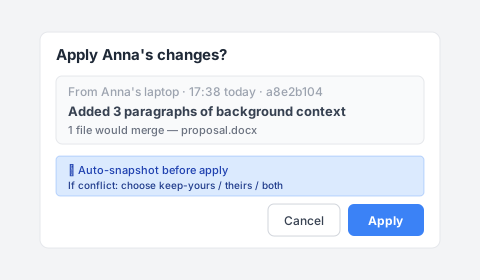
Before you click Apply, Keeply auto-snapshots your current version (so even a wrong click is undoable). If both sides edited the same paragraph, a second prompt asks: keep yours / use Anna’s / keep both. Solves scenarios #1 + #2.
Design B: File locking (whoever opens first gets it)
You open the file, the tool auto-locks it. Your colleague opens it and sees “Anna is editing”, they can’t change it and have to wait. Examples: SharePoint, Adobe Creative Cloud Files, Bentley ProjectWise (a project management system used in construction/engineering). Solves scenarios #1 + #3 + #4, trade-off: colleague has to wait.
Design C: Local copy + manual push (Keeply’s model)
Your working version lives on your machine, sync is an active push you trigger (not Dropbox’s real-time mirror). Collisions are detected at push time and surfaced in a plain-language UI. Keeply takes this route: edit locally, eyeball the diff, then push up to your NAS / SharePoint / shared folder once you’re sure — no surprise overwrites.
After you finish your closing CTA, you click “Save version” in Keeply’s main window and this dialog appears:
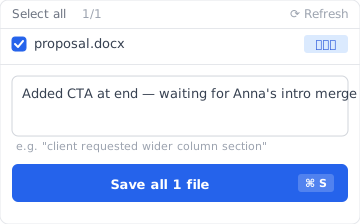
Write a one-liner like “Added closing CTA — waiting for Anna’s merge” and save the version. Anna does the same on her side. Both versions land separately in the shared vault timeline, neither overwriting the other:
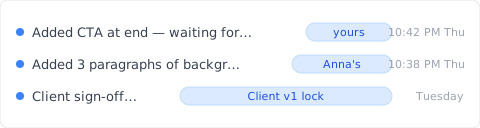
Two versions side by side, each with a note explaining what changed. You decide how to merge them — no silent (conflicted copy) filename, no surprise three weeks later. Solves scenarios #1-#4, trade-off: not as instant as Dropbox.
You’ll notice scenario #4 (cross-OS clock drift) is the hardest, it’s a pure clock problem. Designs A and C can detect it, but resolution still needs the user.
When this isn’t the right tool
Keeply doesn’t solve every Dropbox scenario:
- Large-file real-time sync: Premiere project edit-while-sync, Keeply’s Local Clone model isn’t a fit (push takes minutes).
- Mobile device access: Keeply is desktop-first, Dropbox app on phone is much smoother.
- External share links: Dropbox’s “Share link” has no Keeply equivalent.
- Ultra-high collaboration frequency (multiple edits within an hour): Keeply UX is slower than Dropbox, use Google Docs co-edit for that.
Before you see (conflicted copy) next time
Next time a (conflicted copy) filename shows up in your folder, you won’t spend an hour merging by hand. You’ll know it’s a mechanism problem, and you have other options.
Want to see how Keeply handles sync conflicts? Read the complete guide to file version management.
About the author: Ting-Wei Tsao, founder of Keeply. LinkedIn